
21.4 SmartTime Constraint Scenario
A constraint scenario is an independent set of constraints. By default a scenario is created as Primary Scenario to hold all timing constraints defined by the you. This scenario is used during both analysis and TDPR. Multiple scenarios are created within SmartTime. The scenario used for analysis and the scenario used for TDPR can be selected from the list of available scenarios. Only one scenario is used for analysis at a time. If multiple scenarios are created they are displayed in separate Constraint Editor windows.
The scenarios window lists all timing constraints scenarios available for the current design. To view the scenarios window, from the Tools menu, select .
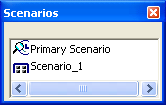
The icons next to the scenario name indicate whether this is an analysis scenario , a TDPR
(Timing-driven Place and Route) scenario , or both  .
.
To copy a constraint from one scenario to the other, select the constraint in the Constraints Editor, and from the right-click menu, select .
From the scenarios window, if no scenario is selected, click and select from the right-click menu:
- Add scenario: To add a new scenario. This option is also available from the
- Allow docking: To allow docking for this window
- Dock this window: To dock this window
- Hide: To hide this window
- Use for Analysis: To use the selected scenario for Timing Analyzer. This command is also available from the Advanced tab in the SmartTime Options dialog box.
- Use for TDPR: To use the selected scenario for Timing-driven Layout. This command is also available from the Advanced tab in the SmartTime Options dialog box, and from the Layout options dialog box.
- Show constraints: To see the constraints for the selected scenario. This option is also available from the .
- Clone scenario: To create a new scenario with a set of constraints based on an existing scenario.
- Delete scenario: To delete the selected scenario
- Rename scenario: To rename the selected scenario
Select multiple scenarios from the scenarios window, but only the following options will be available from the right-click menu:
- Show constraints: To see the constraints for the selected scenarios
- Clone scenario: To create new scenarios with a set of constraints based on existing scenarios
- Delete scenario: To delete the selected scenario. This option will only be available if at least one of the scenarios is not selected.