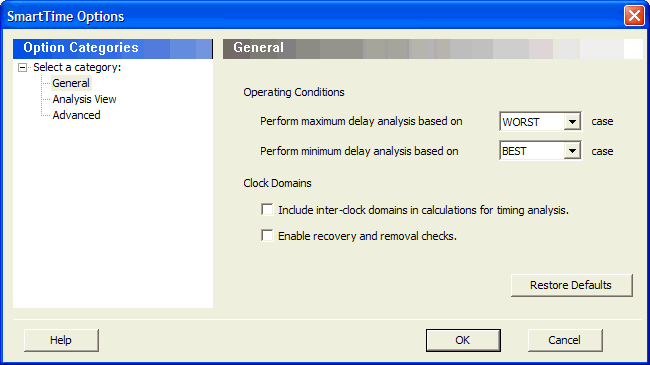
User can modify SmartTime options for timing analysis by using the SmartTime Options Dialog Box. for more information, see SmartTime Options Dialog Box.
To set SmartTime options, perform the following steps:
From the Tools menu, choose Options.
In the SmartTime Options dialog box, select the settings for the operating conditions. SmartTime performs maximum or minimum delay analysis based on the Best, Typical, or Worst case.
Check or uncheck whether you want SmartTime to use inter-clock domains in calculations for timing analysis.
Click Restore Defaults only if the settings in the General pane needs to be reverted to their default settings.
Click Analysis View to display the options you can modify in the Analysis view.
Enter a number greater than 1 to specify the maximum number of paths to include in a path set during timing analysis.
Check or uncheck whether to filter the paths by slack value. If you checks this box, you must then specify the slack range between minimum slack and maximum slack.
Check or uncheck whether to include sets of asynchronous pins.
Click Restore Defaults only if you want the settings in the Analysis View pane to revert to their default settings.
Check or uncheck whether to use loopback in bidirectional buffers (bibufs) and/or break paths at asynchronous pins.
Click Restore Defaults only if you want the settings in the Advanced pane to revert to their default settings.
Click OK.
The following figure shows the SmartTime Options dialog box.Figure 21-3. SmartTime Options Dialog Box – General Options