15.13.1 Overview of Hierarchy Window
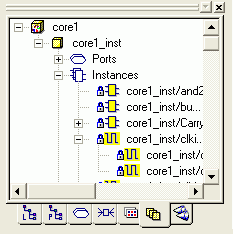
The Hierarchy window (as shown in the figure below) provides easy navigation through the Hierarchy. The Logical tab in this window provides a hierarchical overview of the design.
Click the tabs at the bottom of this window to view macros, instances, ports, nets, regions, and logical cones in your design. Additionally, a Block tab will appear in the Hierarchy window if the design contains Blocks.
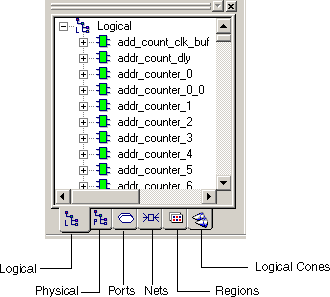
You can use these tabs to explore each level of the hierarchy and to trace signals. You use the Hierarchy window tabs with ChipPlanner, NetlistViewer, PinEditor, and I/O Attribute Editor to help identify critical paths.
In all Hierarchy views, you can right-click an object, and select Properties to display its properties.
Each view contains color-coded icons to indicate its logic type and state. These icons are explained in the following table:
| Icon | Color | What it Represents |
|---|---|---|
 | White | The logic or I/O is unassigned. |
 | Green | The logic or I/O is assigned. |
 | Hashed green | Some instances in the block of logic are assigned. |
 | Red and blue grid | The region is either inclusive or LocalClock. |
 | Blue grid | The region is exclusive. |
 | White | The region is empty. |
 | Black icon | The logic is handled as one unit and cannot be expanded. This icon appears next to the ARM core logic. |
 | Cone icon | The object is a Logical Cone. |
 | Blue checkmark | The logic is assigned to a region. |
 | Gray checkmark | Some instances in the block of logic are assigned to a region. |
 | Blue lock | The entire block of assigned logic is locked to a location. |
 | Gray lock | Some instances in the block of assigned logic are locked to a location. |
 | Yellow cube | Indicates a block flow. |
 | Blue | Indicates this macro, net, or port only exists in the pre-optimized view. |
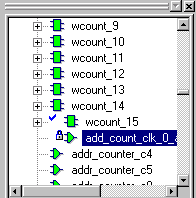
The Logical tab shown below illustrates that the selected logic is assigned to a region and locked. Only the Logical tab shows the logical hierarchy of the design. The Physical tab shows the physical hierarchy. The other tabs are not hierarchical.