
16.8 Using NetlistViewer (non-MVN) with Timer
To view and trace timing paths, use NetlistViewer with Timer.
To trace paths using NetlistViewer and Timer, perform the following steps:
- In Designer’s Design
Flow window, select NetlistViewer.Note: To start NetlistViewer, the design must be compiled. If the design is not compiled, Designer prompts to compile it. NetlistViewer then starts and displays the netlist.
- In Designer's Design
Flow window, click Timer . The
Timer window opens, as shown in the following figure.
Figure 16-14. Timer 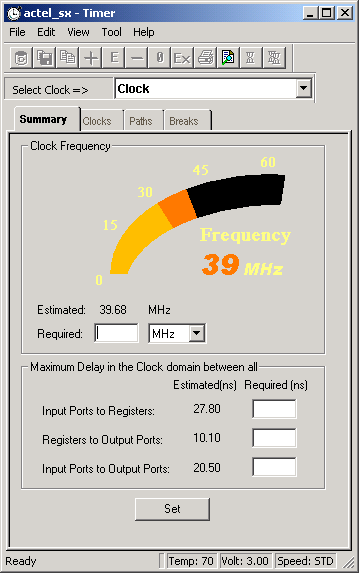
- Click the Timer Paths tab.
Figure 16-15. Paths Tab 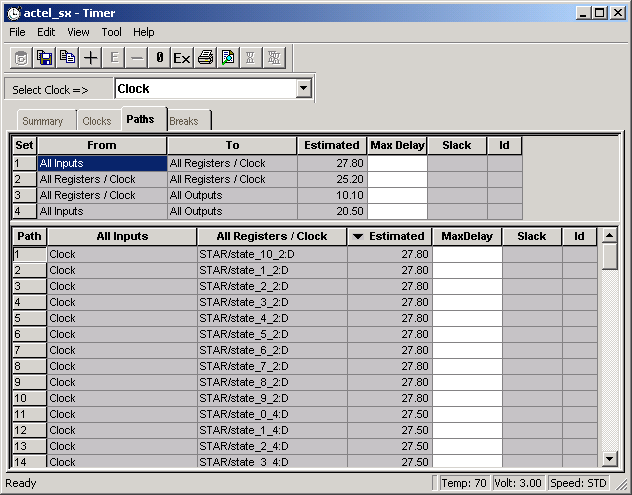
- In the Path Set table, select a path set. The system displays the associated paths in the following Path Set window.
- Select the path that you want to expand.
- Double-click the path to expand it, or
select . The Expanded Paths window opens and displays the
Expanded Paths grid and a graphical representation in the
Graph window, as shown in the following figure.
Figure 16-16. Timer Expanded Paths Window 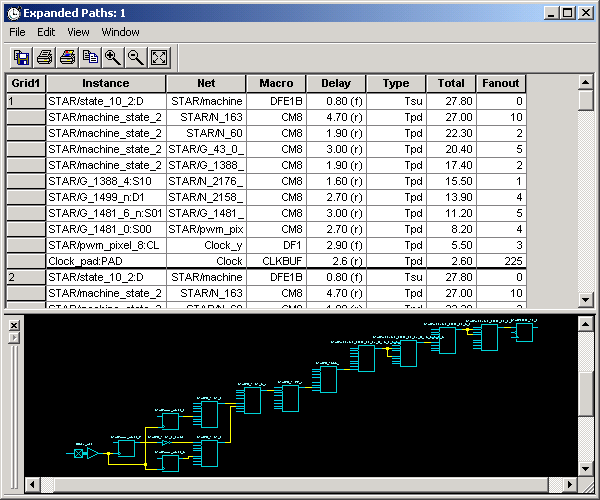
- Select an instance in the Expanded Paths grid or in the
Graph window. NetlistViewer highlights the selected instance, as
shown in the following figure.
Figure 16-17. Instance Selected in Timer 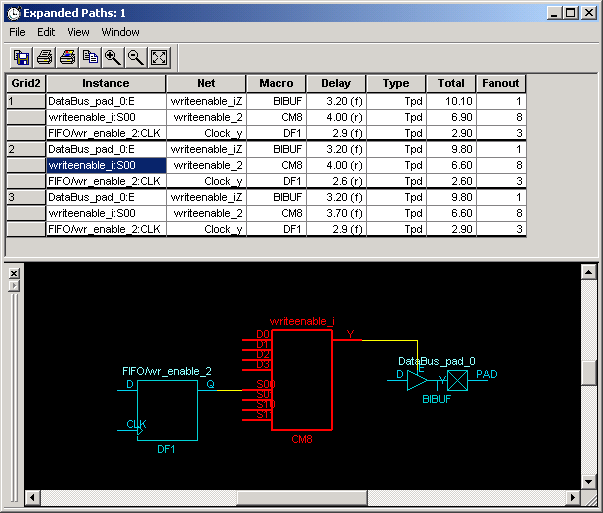
- Select the first register in the
Timer path and locate it in NetlistViewer. Follow the entire path
in NetlistViewer to trace the design connectivity. The following figure shows the instance
selected in Timer highlighted in the NetlistViewer.
Figure 16-18. Instance Selected in Timer Highlighted in NetlistViewer 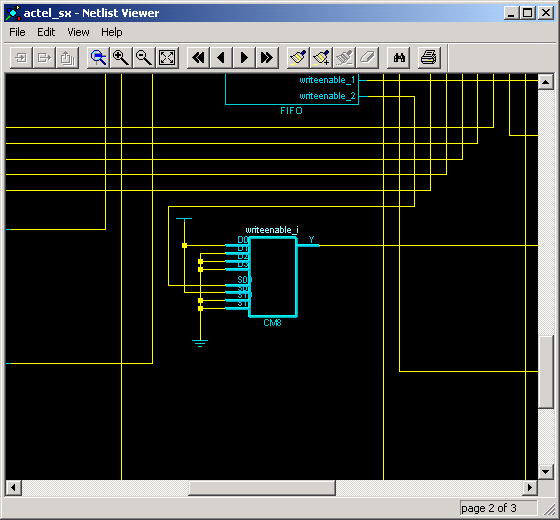
For more information about Timer, see the Timer online help or Timer User Guide.