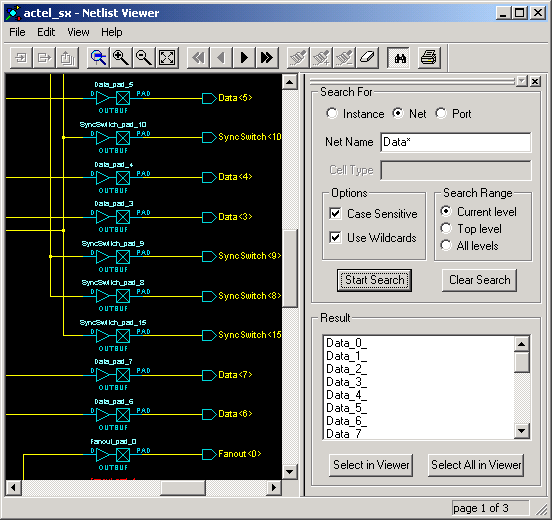
Searching for objects can shorten the debug time, allows to locate an instance, net or port in a
complex design without pushing, popping or scrolling. To search for instances, nets, and
ports, use the Search Tool window.
To search for an instance, net or port, perform the following steps:
From the View
menu, choose Search Tool. The Search Tool window opens
to the right of the Schematic window. This window is both sizable and dockable.
Select Instance,
Net, or Port in the Search For
area.
Type the text that you are looking for in the Name
area. Refine the search by specifying a Cell Type (on
the Instance tab).
Figure 16-10. Search Tool WindowThe Name and Cell Type fields accept
regular expressions. The following table lists the wildcard characters in regular
expressions.
Table 16-2. Wildcard characters
Wildcard
What It Does
?
Matches any single character
*
Matches any string
[]
Matches any single character among those listed between brackets (that is,
[A-Z] matches any single character in the A-to-Z range).
/
This is the level-bordering symbol. For example, "A/B" designates "object
B, which is part of instance A".
Select from among the following search
options:
Case Sensitive - Select this check
box if you want the search to return only items that match the case of the items you
entered.
Use Wildcards - Select this check box
if you used wildcards in the Name or Cell
Type fields.
Search Range - Select a search range
to limit your search to a hierarchical level.
Click Start
Search. The located objects, if any, appear in the Result
list box.
Select one or several objects in the
Result list box, and then click either Select in
Viewer or Select All in Viewer to locate your
object(s) in the Schematic window.