16.10 Identifying paths
In this example, the NetlistViewer is used with Timer to identify the inputs of combinational gates. For more information about Timer, see the Timer User's Guide.
To identify these paths, perform the following steps:
- From Designer, start NetlistViewer by
clicking NetlistViewer in the Design Flow
window. NetlistViewer starts and displays the netlist.
Figure 16-19. Starting NetlistViewer 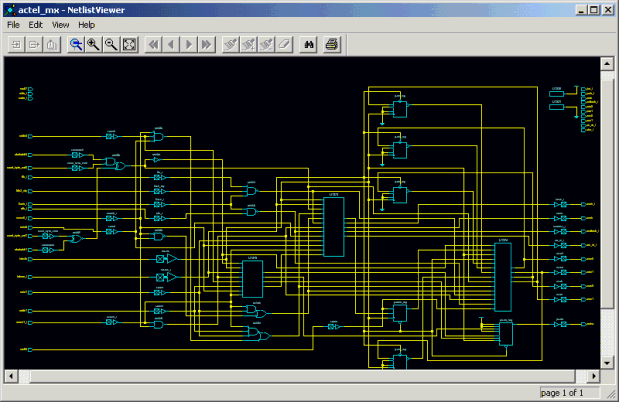
- From Designer, start Timer by clicking Timer in the Designer Flow window. Timer starts.
- In Timer, click the Paths
tab. The Paths tab displays timing analysis information
for several categories of paths, known as "sets", in the Path Set
window. When you select a Path set, Timer displays the corresponding paths in the lower table.
Figure 16-20. Timer Paths Tab 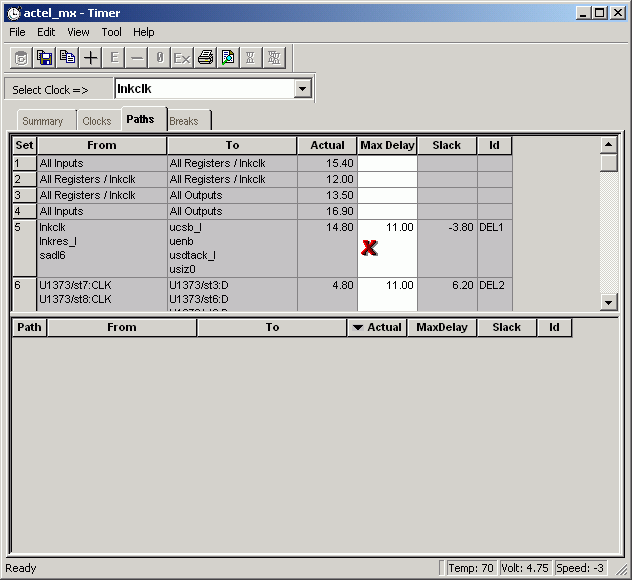
- Select a path. Timer displays the paths within that set in the lower table.
- Double-click a path (in the lower paths
table) to view a graphical representation of the path. The Expanded
Paths window opens, as shown in the following figure..
Figure 16-21. Expanded Paths Window 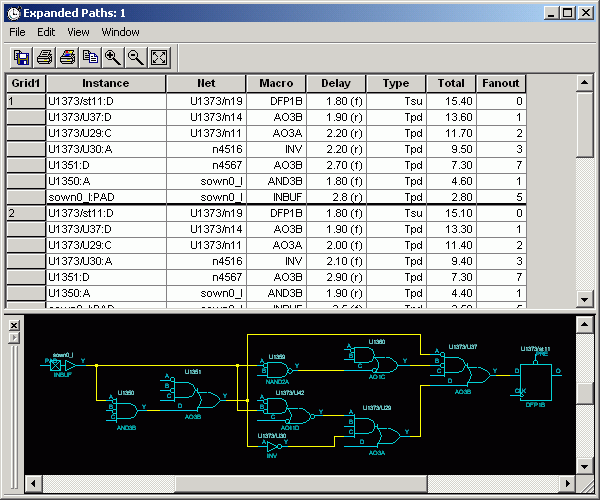 The Expanded Paths window displays the path in the Expanded Paths table and shows a graphical representation of that path in the Graph window.Note: Inputs of combinational gates are not displayed in the Graph window.It is useful to know where these paths come from because they may indicate a false path that never occurs but can affect the timing report. It is also important to understand how other inputs to these macros interact with the selected path, as this information helps to define appropriate paths and obtain accurate timing reports.
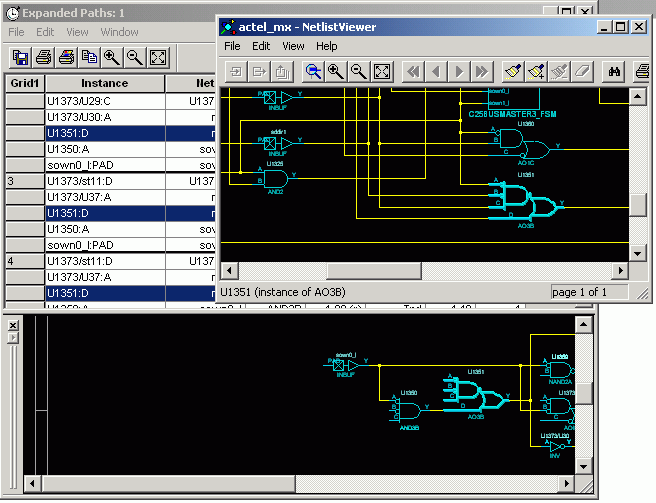
Figure 16-22. Combinational Gates in Timer's Expanded Paths Window 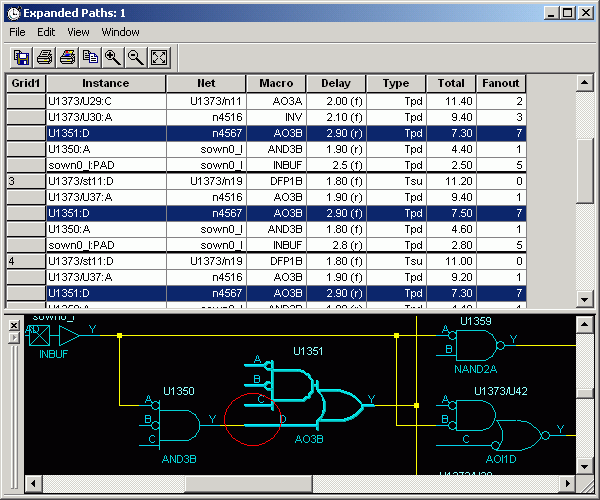
- In the Graph
window, select the macro. NetlistViewer locates and highlights the selected macro, as
shown in the following figure.
Figure 16-23. Selected Macro is Located and Selected in NetlistViewer