
9.4.8.1 Adding Non-Actel Devices to the Chain
FlashPro® recognizes non-Actel devices in the chain, but it does not contain any device information, such as IR length or Max TCK. The figure below lists Actel devices and non-Actel devices in the chain.
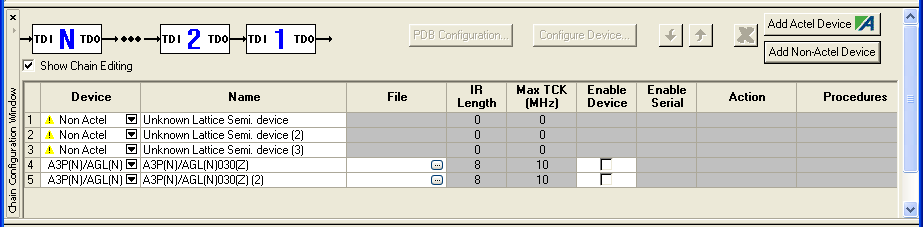
You must import the BSDL file into Actel's non-Actel device database for FlashPro to recognize your non-Actel device.
To import the device BSDL into the FlashPro non-Actel device database and run the scan chain:
- From the Tools menu, choose Import Settings for Non-Actel Devices. This opens the Import Settings for Non-Actel Devices dialog box. This dialog box enables you to import and remove BSDL files from the database and lists all the device information contained in the BSDL file.
- Click the Import BSDL
Files button and navigate to the folder that contains your BSDL files. Select
the file and click OK. Once the BSDL is imported into the database,
the original BSDL file is no longer audited by FlashPro. If changes are made to the original
source BSDL file, it will not affect the BSDL file that has been imported into the non-Actel
device database.
Remove BSDL files from the database by selecting the file and clicking the Remove button.
- Once you have the appropriate BSDL files loaded to the database, you can construct the chain. To do so, from the Configuration menu, choose Construct Chain Automatically and select the appropriate programmer from the dialog box. FlashPro runs a scan chain, detects the devices in the chain, and associates them with the BSDL files in the database, as shown in the figure below.
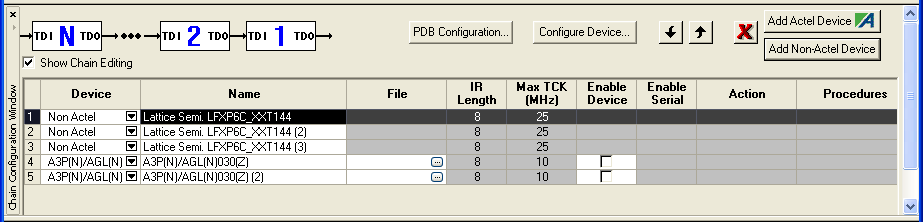
It is possible to add multiple BSDL files to your Non-Actel device database that have the same IDCODE. If the BSDL files list the same IR length but different TCK values, FlashPro automatically chooses the file with the lowest TCK value by default and no action is required. If the IR lengths are different you receive an error message asking you to resolve the conflict.
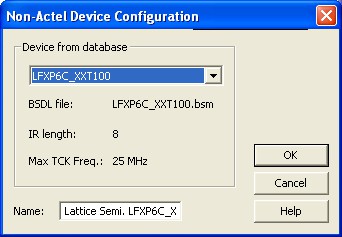
For a tutorial on manually adding both Actel and non-Actel devices to your chain as well as programming the chain, refer to the Chain Programming Tutorial. section.