
9.4.4 SmartFusion® Programming Tutorial
You can program your SmartFusion® device without using the Libero® IDE by using an EFC or UFC file from standalone SmartDesign, or by using an FDB file from standalone Designer.
To program a SmartFusion device without using the Libero IDE:
- Start FlashPro® and click New Project to create a new project. Specify the Project Name, Project Location and Programming Mode.
- Click Configure Device.
- For Single Mode,
click the Create to generate a new PDB programming file. The Create
PDB dialog box appears.
- For Chain Mode, click Add Actel Device
and choose a SmartFusion device from the drop-down list. Click Create
PDB in the Chain Configuration Window. The Create PDB dialog box appears.
Figure 9-38. Create PDB Dialog Box 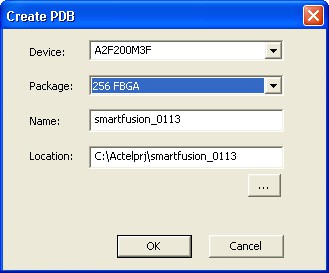
- For Chain Mode, click Add Actel Device
and choose a SmartFusion device from the drop-down list. Click Create
PDB in the Chain Configuration Window. The Create PDB dialog box appears.
- Specify the PDB parameters and click OK. The FlashPoint SmartFusion Programming File dialog box appears.
- Specify the security settings and select the silicon features to program. Click
Import for Programming the FPGA Array, Programming the FlashROM and Programming the Embedded Flash Memory blocks to add them to your PDB file.
You must provide the following files to program each feature:
- An FDB file to program the FPGA Array
- A UFC file to program FlashROM
- An EFC file to program Embedded Flash Memory
Click Modify if you want to edit the FlashROM or Embedded Flash Memory files before saveing the PDB.
- (Optional) Specify I/O States During Programming
- Click Save PDB to save the PDB file.
If you later modify the security settings, I/O states during programming, or any EFC, UFC or FDB file, click Modify in FlashPro to reopen and re-save the PDB with the updated files and settings.
For information about programming a secured SmartFusion device, see Reprogramming a Secured Device.