
9.4.7.2 Configuring the Security Settings
Once you have created your project and connected your programmer, you are ready to load your PDB file.
To configure the security settings:
- Click the Configure Device
button. The Single Device Configuration window appears in FlashPro®.
Figure 9-45. Single Device Configuration Window 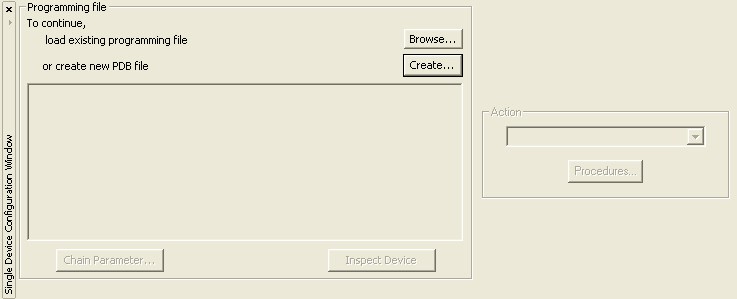
- Click Create. This
opens the Create PDB dialog box, as shown in the figure below.
Figure 9-46. Create PDB Dialog Box 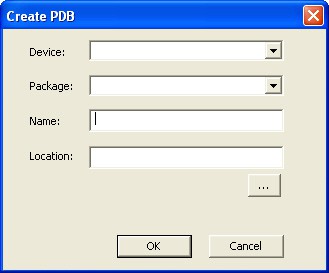
- Select the desired device and package (if available) from the drop down list, and specify the filename and location. Click OK. FlashPoint opens. IGLOO®, ProASIC3, SmartFusion® and Fusion family devices support securing the device with a pass key as well as encrypting programming files using an AES key. Flash devices can also be permanently locked, preventing reprogramming.
- Check the Security
Settings checkbox to secure the unsecured device.Note: Make a note of the security keys that you are using. Once a device is secured, it cannot be reprogrammed without those keys.
Figure 9-47. Security Settings Dialog Box 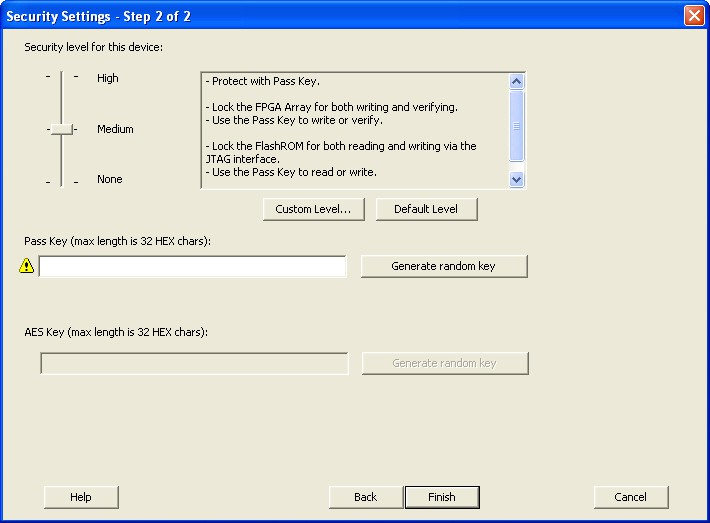
- Click Finish.
After configuring the security settings, proceed to program the device. For step‑by‑step instructions, see the Programming a Device section in the Single STAPL/PDB File Basic Tutorial.