9.13.1 Generate a Programming File in FlashPoint
FlashPoint enables you to program security settings, FPGA Array, and FlashROM features for IGLOO®, ProASIC3, SmartFusion®, Fusion, and ProASIC family devices. You can program these features separately using different programming files or you can combine them into one programming file. Each feature is listed as a silicon feature in the GUI.
You can generate a programming file with one, two, or all of the silicon features from the Programming File Generator first page.
To generate a programming file:
- Select the Silicon
feature(s) you want to program.
Figure 9-125. Programming File Generator – Step 1 of 2 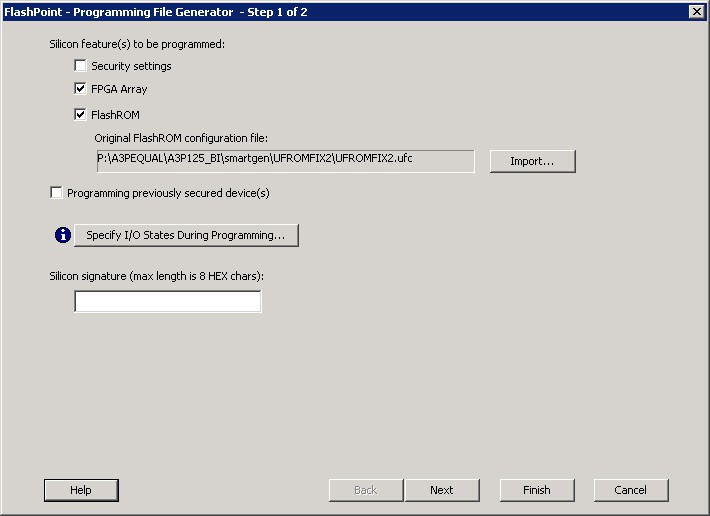 Note: When FlashPoint is invoked for the first time, after netlist files are imported and the design is in post-layout state, the software retrieves the FlashROM and EFM blocks configuration files from the imported netlists and imports the configuration files. Otherwise, you need to import configuration files.
 - Click the Programming previously secured device(s) check box if you
are reprogramming a device that has been secured.
Because the IGLOO, ProASIC3, SmartFusion, Fusion, and ProASIC families enable you to program the Security Settings separately from the FPGA Array and/or FlashROM, you must indicate if the Security Settings were previously programmed into the target device. This requirement also applies when you generate programming files for reprogramming.
- Enter the silicon signature (0-8 HEX characters). See Silicon Signature for more information.
- Depending upon the Silicon features you selected, click Next or Finish.
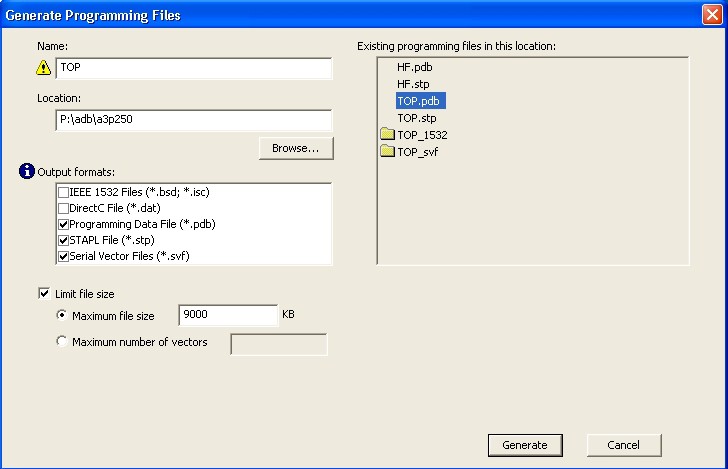
If you click Next, follow the instructions in the appropriate dialog box. If you click Finish, the Generate Programming Files dialog box appears (as shown in the figure below). Use this dialog box box to specify the programming file name, location, output format (STAPL file, SVF file, PDB file, DirectC DAT file, 1532 file), and, if necessary, limit the file size (as explained below).
Some testers may have memory size restrictions for a single SVF file. The SVF limit file option enables you to limit the size of each SVF file by either file size or vectors.
The generated SVF files append an index to the file name indicating the sequence of files. The
format is: <SVF_filename>_XXXXX.svf
where XXXXX is the index of the SVF file. The first SVF file begins with
<SVF_filename>_00000.svf and increments by 1 until file generation is
complete.
Maximum file size: Max file size limit for the SVF file; use this option to limit your SVF file size based on number of kB.
Maximum number of vectors: Max vector limit for the SVF file; use this option to limit the size of your SVF based on number of vectors.