
2.9.6.2.2 Using I/O Editor
(Ask a Question)To select the DDR subsystem location, follow these steps:
- Click Design Flow > Constraint Manager > I/O Attributes >
Edit with I/O Editor.
Figure 2-71. I/O Editor 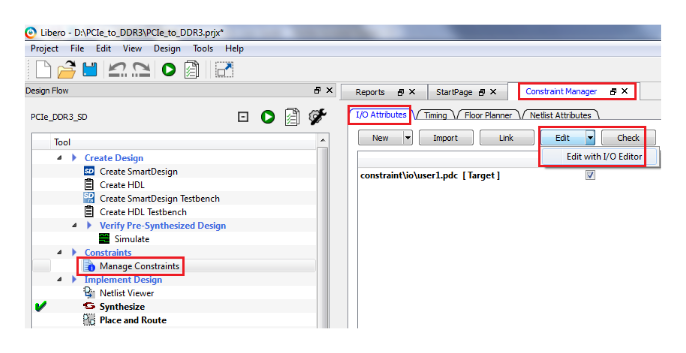
- Select the Memory View tab in
I/O Editor. Select the appropriate Memory Type to get the valid
locations for the memory type.
Figure 2-72. I/O Editor—Memory View  Important: The difference between DDR3 and DDR3L is the I/O standard, SSTL15 and SSTL135 I/O. I/O editor allows to select SSTL15I, SSTL15II, SSTL135I, SSTL135II I/O standards. User needs to select SSTL135 I/Os in the I/O editor for DDR3L configuration.
 - Select the appropriate DDR instance from the Design View window, and drag it
onto Port Function. For the selected DDR instance, the I/O Editor shows the valid
locations in green.
Figure 2-73. I/O Editor—Valid DDR Locations 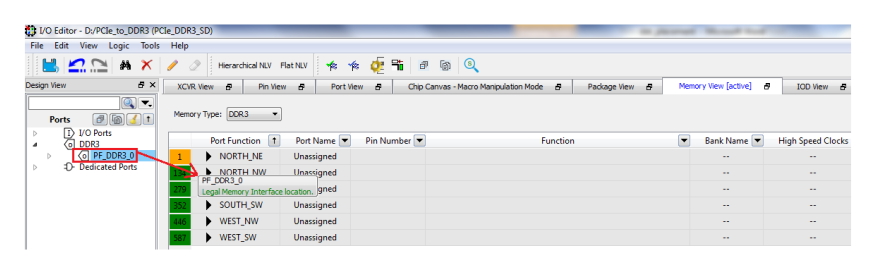
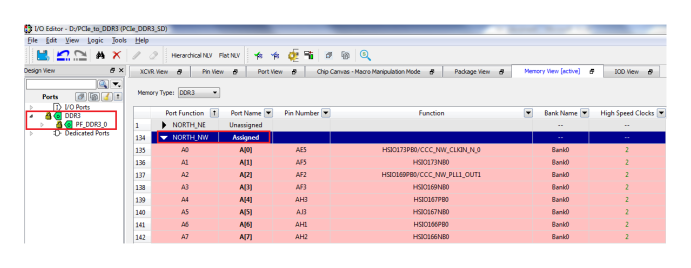
In I/O Editor, Design View window, the DDR instances that are assigned and locked are shown in green. I/O Editor does not assign a location if the selected location is unavailable, has insufficient resources or is impacted by any other issue. If an issue is detected, I/O Editor displays an error.
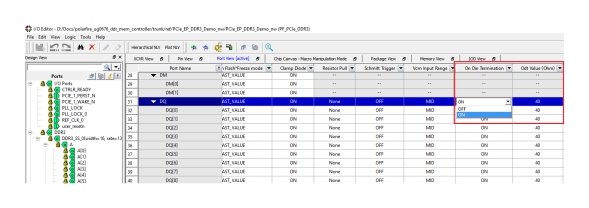
To turn ODT on for a DQ and DQS, select the Port View tab, select the signal, and select ON from the On Die Termination list, as shown in the following figure.
Important: 60Ω ODT is the recommended ODT setting for DDR4
DIMM/on-board DDR4 component. 30Ω ODT is the recommended ODT setting for on-board DDR3
component. 60Ω ODT is the recommended ODT setting for DDR3 DIMM.
Note: If VREF is not specified, the internal VREF is used. When
external VREF is used, any I/O pin available on the same bank can be selected as VREF using
the I/O Editor. If the DDR Subsystem uses two banks, two external VREF pins are required
(one per each bank). Microchip recommends using the internal VREF.
If there is DDR, QDR, and DLL in a design, be aware of the following DLL placement rules:
- If DDR/QDR is placed in NORTH pinouts, the DLL cannot be placed in the location 2,377 (DLL0_NW)
- If DDR/QDR is placed in SOUTH pinouts, the DLL cannot be placed in the location 2462,5 (DLL0_SE)
- If DDR/QDR is placed in WEST pinouts, the DLL cannot be placed in the location 2,5 (DLL0_SW)