
15.3.4.1 Vertical Navigation
Navigate vertically through your hierarchical design using the Push, Pop, and Top commands. These commands are available from the Schematic menu, the right-click menu, and the toolbar.
To go one level deeper in a design:
Note: This feature is only available for hierarchical instances (that is, instances that contain
logic).
- Select an instance.
- From the Schematic
menu, choose Push, or from the right-click menu, choose
Push instance<name of instance>.
Figure 15-16. Pushing Instance U1374 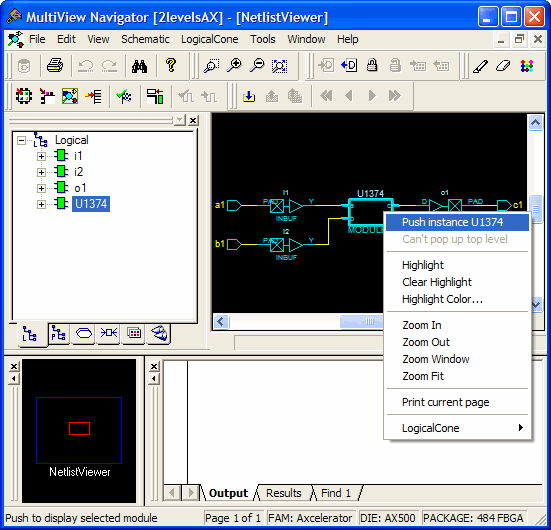
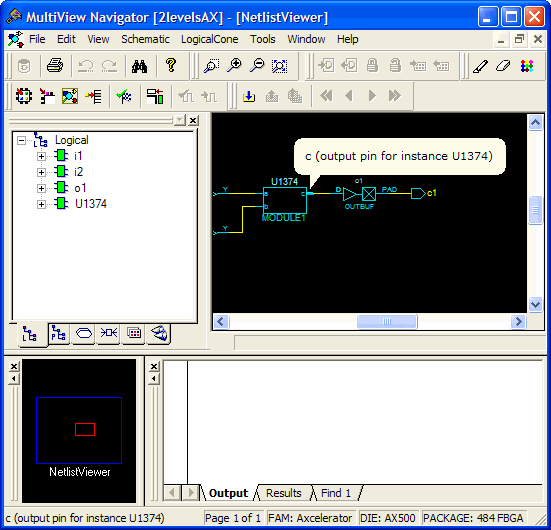
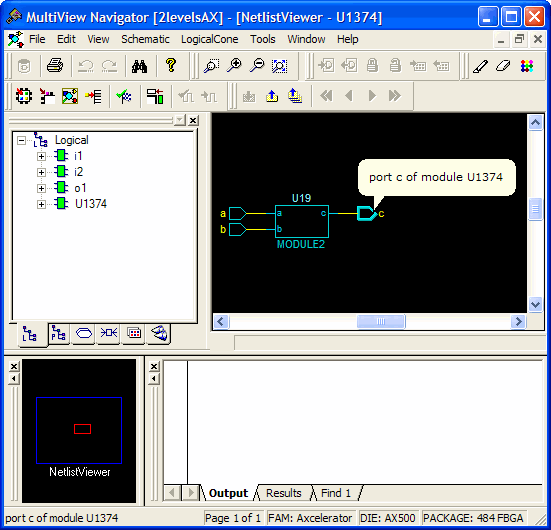
You can also select one pin of an instance, and then choose Push from the right-click menu to move the focus to that pin. For example, if you select pin C of block U1374, and then choose Push from the right-click menu (as shown below), NetlistViewer centers on the port corresponding to the pin you selected (as shown below):
To go one level higher in a design:
- Select an instance.
- From the Schematic menu, choose Pop, or from the right-click menu, choose Pop up current level. You can also select a port and click the Pop toolbar button to go up one level and center on the pin corresponding to the port you selected.
To go to the top level, from the Schematic menu, choose Top, or click the Top toolbar button.