
20.2.2 Domains Tab
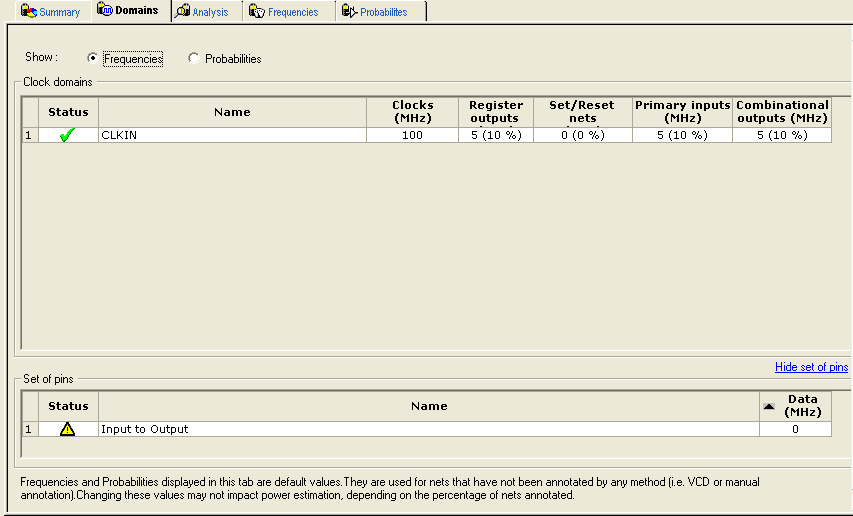
The Domains tab displays a list of existing domains with their corresponding clock and data frequencies and probabilities.
When you start SmartPower for the first time, it will automatically initialize frequencies from SmartTime with a default data toggle rate of 10%. However, if you update your timing constraints in SmartTime, you can use the Initialize Frequencies and Probabilities dialog box to update SmartPower with new frequencies from SmartTime. If you don't have timing constraints in SmartTime, you can manually initialize clock and data frequencies by directly editing the Domains tab grid, or you can use the Initialize Frequencies and Probabilities dialog box.
If you import a VCD file, the Domains tab will display average clock and data frequencies for each clock domain and input set. This average is calculated using VCD information.
Data and clock frequencies are automatically set to zero when in non-active modes.
The Domains tab displays frequencies or probability data for clock domains and sets of pins. In this tab, you can add, edit, or remove domains or sets of pins, and change the clock and/or data frequency of a selected domain.
To hide or display the grid for set of pins, click the Hide/Show set of pins link.
You can edit frequency or probability data directly from the grid.
To create a new clock domain or set of pins:
- Right-click the clock domain or set of pins and select to add a new create new clock domain or create new set of pins.
- Enter a name and click OK. The new clock domain or set of pins appears in the Domains tab.
- Modify the frequency and probability data as needed.
Clock domain frequencies can be initialized by right-clicking the clock domain name and selecting Initialize Frequencies and Probabilities. If there is no frequency constraint set for this clock domain in SmartTime, the clock frequency of the domain will not be changed.
The status of a clock frequency or probability is displayed in the first column by an icon. Mouse over the icon to identify the status:
Icon | Description |
|---|---|
| This clock has not been initialized |
| No constraints available for this clock from SmartTime |
| Average frequencies/probabilities imported from VCD |
| Clock constraints imported from SmartTime |
| This clock has been manually initialized |


This feature is only available when in active operating mode or when in a mode based on the Active mode.
The status of a set of pins is displayed in the first column by an icon. Mouse over the icon to identify the status:
Icon | Description |
|---|---|
| This set has not been initialized |
| Average frequencies/probabilities imported from VCD |
| This set has been manually initialized |
This feature is only available when in active operating mode or when in a mode based on the Active mode.
To remove one or multiple clock domains, select the clock domain(s), and click Remove Selected Domains(s).
To edit a clock domain or a set of pins:
- Select the clock domain and from the right-click menu, and select Edit Domain. The Clock Domain or Set-of-Pins window appears.
Figure 20-4. Clock Domain Window 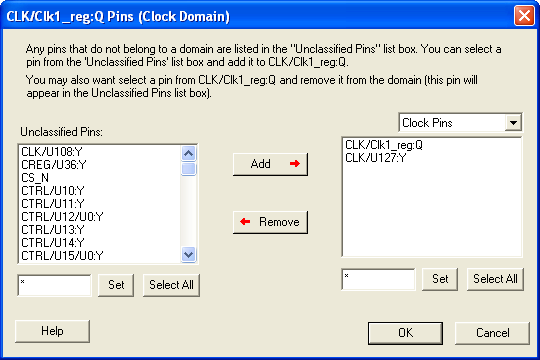
Any pins that do not belong to a domain are listed in the Unclassified Pins list box. You can select a pin from the Unclassified Pins list box and add it to the current domain. You may also select a pin from the current domain and remove it from the domain (this pin will appear in the Unclassified Pins list box).
Clock Pins and Data Pins: Select Clock Pins from the pull-down list to display all clock pins for the selected domain, or select Data Pins to display registers, asynchronous signals, primary input, and combinational signals for the selected domain. Use the filter boxes to narrow your search for a specific pin. The boxes are text filters; * is a wildcard.
- Click OK.
To delete a clock domain or a set-of-pins, select the clock domain or set-of-pins and from the right-click menu, select Remove Domain.