
20.2.13 Custom Operating Modes
SmartPower enables you to use pre-defined and custom operating modes. A pre-defined operating mode is an inherent mode of a family of devices that comes with a number of hard availability constraints on the FPGA resources. Custom operating modes are user-defined modes based on one of the pre-defined modes available for the family, where parameters such as clock, data, and toggle rate frequencies have been customized. A custom mode can also be linked to a VCD.
Custom modes can be used:
- To define additional modes where the chip is in the active pre-defined mode, but where the clock frequencies or the toggle rates are scaled up or down.
- To import multiple VCD files that capture individual steps that take place in different modes.
- To define a sequence of modes with a duration for each mode and get an estimate of the overall power consumption, from which extrapolate the battery life for the application. The Scenario Power report enables you to define a sequence of modes and estimate the weighted average of the power consumption of the chip over the whole sequence.
- To define additional modes where the chip is in a pre-defined mode, but the junction/ambient temperature or the rails' voltage modes are different.
To set the current mode:
From the Edit menu in SmartPower, select ; or select the mode in the Modes and Scenarios toolbar.
To create a new custom mode:
- From the Edit menu in SmartPower, select Modes and Scenarios > Custom Modes > New Custom Mode; or click Custom Modes in the Modes and Scenarios toolbar, and select New custom mode. This brings up the New Custom Mode dialog box.
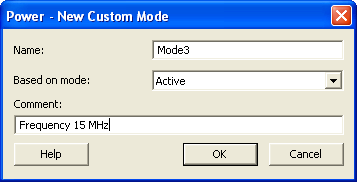
- Enter the mode name, select the base mode, and enter comments that describe the mode. The base mode can be either a user-defined custom mode or the active mode. The new mode will inherit all clock and data frequencies and annotations of its base mode.
- Click OK. The newly created operating mode is set as default in the Modes and Scenarios toolbar.
To edit a custom mode:
- From the Edit menu in SmartPower, select ; or right-click the mode in the Modes and Scenarios toolbar, and select Edit custom mode. This brings up the Edit Custom Mode dialog box.
Figure 20-28. Edit Custom Mode Dialog Box 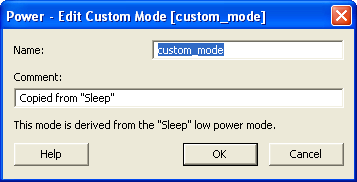
- Edit the mode name and comments.
- Click OK.
You can only use the Edit Mode dialog box to edit the name and comment of the current mode. To edit the mode properties such as clock and data frequencies, use the SmartPower tabs.
To copy a custom mode:
- Right-click the mode in the Modes and Scenarios toolbar, and select Create a copy of this mode. This brings up the New Custom Mode dialog box.
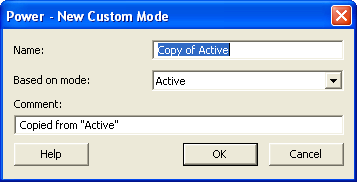
- Edit the mode name and comments.
- Click OK.
To delete a custom mode:
- From the Edit menu in SmartPower, select ; or right-click the mode in the Modes and Scenarios toolbar, and select Delete Mode. This brings up the Delete Custom Mode dialog box.
Figure 20-30. Delete Custom Mode Dialog Box 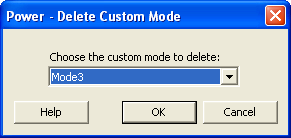
- Select the mode from the pull down and click OK.
You can only delete custom operating modes. Pre-defined modes cannot be deleted.