
20.2.14 Scenarios
A scenario is a sequence of previously defined operating modes with a specific duration for each mode. When you create a new design, SmartPower will automatically create some pre-defined scenarios that can be used as is, or copied to create a new scenario based on the pre-defined one.
Pre-defined scenarios cannot be deleted or edited.
To set the current scenario for analysis:
From the Edit menu in SmartPower, select ; or select the scenario in the Modes and Scenarios toolbar.
When a scenario is selected, only the Summary tab is available.
To create a new custom scenario
- From the Edit menu in SmartPower, select ; or click Scenarios in the Modes and Scenarios toolbar, and select New custom scenario. This brings up the New Custom Scenario dialog box.
- Enter the scenario name, enter a duration (total duration for the sequence must equal to 100%) and select previously defined operating modes for this sequence.
- Click OK. The newly created scenario is set as default in the Modes and Scenarios toolbar.
- From the Edit menu in SmartPower, select ; or right-click the scenario in the Modes and Scenarios toolbar, and select Edit custom scenario. This brings up the Edit Custom Scenario dialog box.
To edit a custom scenario:
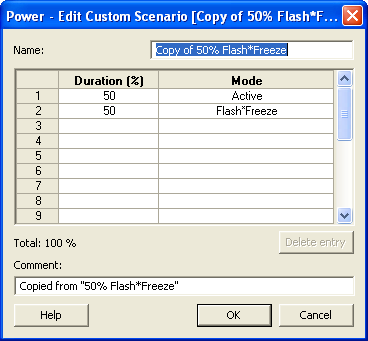
- Edit the information.
- Click OK.
To copy a scenario:
- Right-click the scenario in the Modes and Scenarios toolbar, and select Create a copy of this scenario. This brings up the New Custom Scenario dialog box.
Figure 20-32. New Custom Scenario Dialog Box 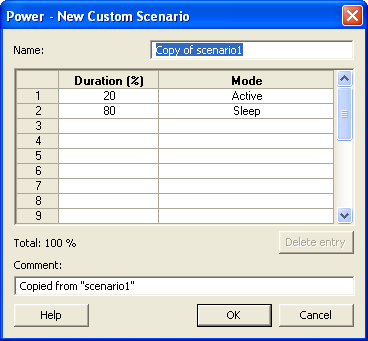
- Edit the information.
- Click OK.
To delete a custom scenario:
- From the Edit menu in SmartPower, select ; or right-click the scenario in the Modes and Scenarios toolbar, and select Delete Scenario. This brings up the Delete Custom Scenario dialog box.
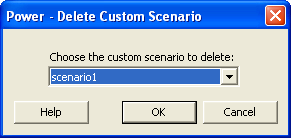
- Select the scenario from the pull down and click OK.