
21.9.7 Specifying a Minimum Delay Constraint
You set options in the Minimum Delay Constraint dialog box to relax or to tighten the original clock constraint requirement on specific paths.
To specify Min delay constraints:
- Add the constraint in the editable constraints grid or open the Set Minimum Delay Constraint dialog box using one of
the following methods:
- From the SmartTime Actions menu, choose .
- Click the
 icon.
icon. - Right-click Min delay in the Constraint Browser.
- Double-click any field in the Minimum Delay Constraints grid.
The Set Minimum Delay Constraint dialog box appears (as shown below).Figure 21-64. Set Minimum Delay Constraint Dialog Box 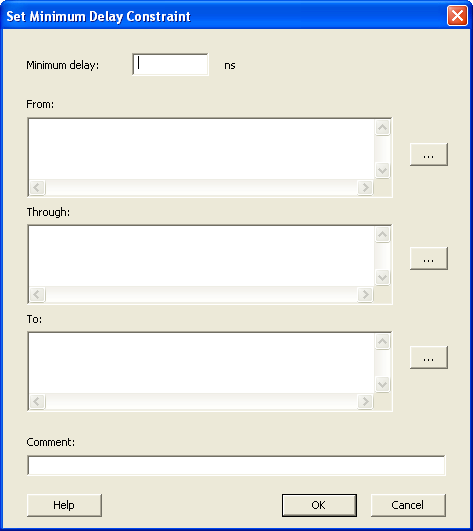
- Specify the delay in the Minimum delay field.
- Specify the From
pin(s). Click the Browse button next to
From to open the Select Source Pins for
Min Delay Constraint dialog box (as shown below).
Figure 21-65. Select Source Pins for Max Delay Constraint 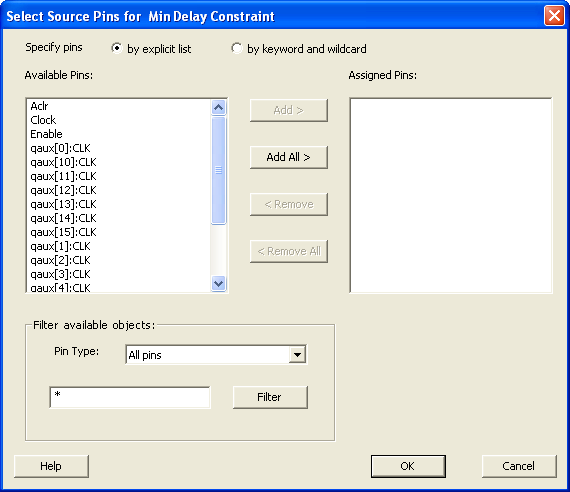
- Select by explicit list. (Alternatively, you can select by keyword and wildcard.)
- Select the input pin(s) from the Available Pins list. You can also use Filter available objects to narrow the pin list. You can select multiple ports in this window.
- Click Add or Add All. The input pin(s) move from the Available Pins list to the Assigned Pins list.
- Click OK. The Set Minimum Delay Constraint dialog box displays the updated From pin(s) list.
- Click the Browse button for Through and To and add the appropriate pin(s). The displayed list shows the pins reachable from the previously selected pin(s) list.
- Enter comments in the Comment section.
- Click OK.
SmartTime adds the minimum delay constraints to the Constraints List in the SmartTime Constraints Editor.