
21.9.8 Specifying a Multicycle Constraint
You set options in the Set Multicycle Constraint dialog box to specify paths that take multiple clock cycles in the current design.
To specify multicycle constraints:
- Add the constraint in the editable constraints grid or open the Set Multicycle Constraint dialog box using one of the
following methods:
- From the SmartTime Actions menu, choose Constraint > MultiCycle.
- Click the
 icon.
icon. - Right-click the Multicycle option in the Constraint Browser.
The Set Multicycle Constraint dialog appears (as shown below).Figure 21-66. Set Multicycle Constraint Dialog Box 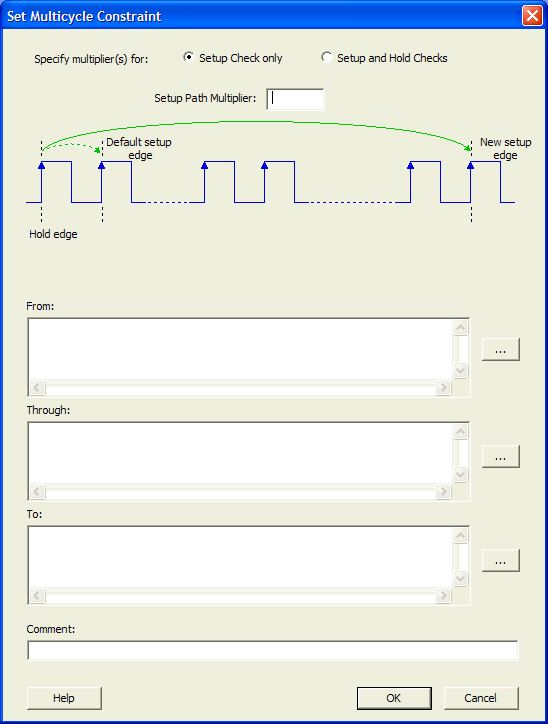
- Specify the number of cycles in the Setup Path Multiplier.
- Specify the From
pin(s). Click the browse button (...) next to From
to open the Select Source Pins for Multicycle Constraint dialog box
(as shown below).
Figure 21-67. Select Source Pins for Multicycle Constraint 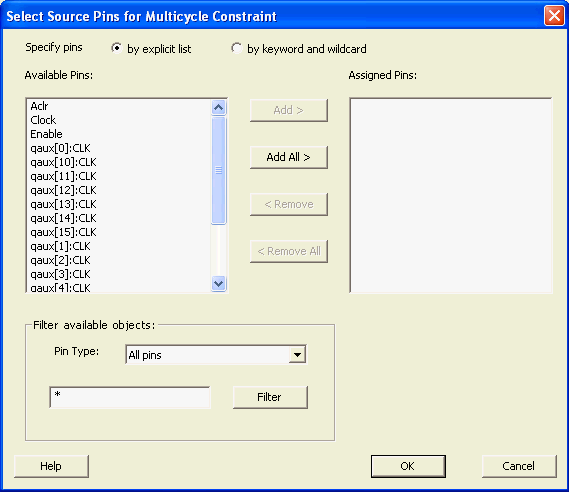
- Select by explicit list. (Alternatively, you can select by keyword and wildcard. For details, refer to Select Source or Destination Pins for Constraint.)
- Select the input pin(s) from the Available Pin list. You can use Filter available objects to narrow the pin list. You can select multiple ports in this window.
- Click Add or Add All to move theinput pin(s) move from the Available pins list to the Assigned Pins list.
- Click
OK.
The Set Multicycle Constraint dialog box displays the updated representation of the From pin(s) (as shown below).
Figure 21-68. Set Multicycle Constraint Dialog Box 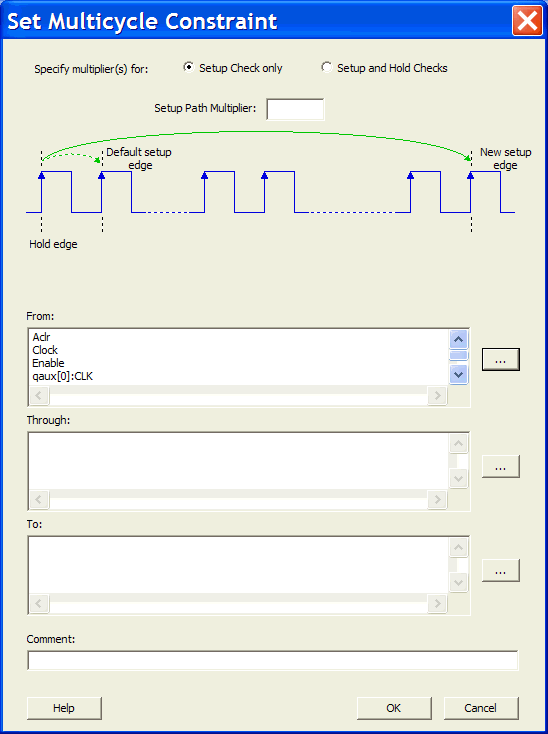
- Click the browse button for Through and To and add the appropriate pins. The displayed list shows the pins reachable from the previously selected pin(s) list.
- Enter comments in the Comment section.
- Click OK. SmartTime adds the multicycle constraints to the Constraints List in the SmartTime Constraints Editor.