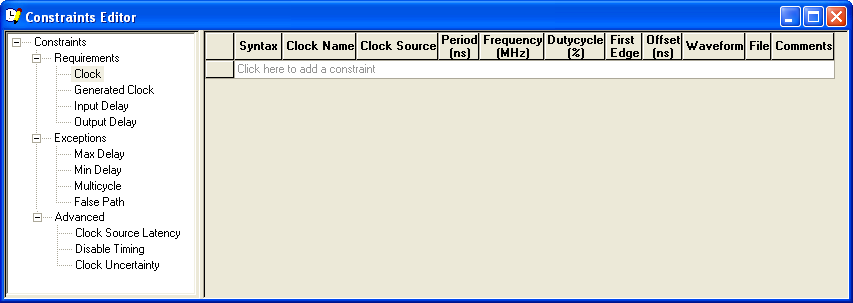
The Constraints Editor allows you to add, edit and delete constraints directly from the
Constraints Editor View.Figure 21-16. Constraints Editor View
To add a new constraint:
Select a constraint type from the
constraint browser.
Enter the constraint values in the first
row and click the green check mark to apply your changes. To cancel the changes press the
red cancel mark.
The new constraint is added to the
Constraint List. The green syntax flag indicates that the constraint was successfully
checked.
To edit a constraint:
Select a constraint type from the
constraint browser.
Select the constraint, edit the values
and click the green check mark to apply your changes. To cancel the changes press the red
cancel mark. The green syntax flag indicates that the constraint was successfully
checked.
To delete a constraint:
Select a constraint type from the
constraint browser.
Select the constraint you want to delete
and from the right-click menu, select Delete Constraint.