
21.6.3 Adding an Input Delay Constraint
To add an input delay constraint, perform the following steps:
- Click the Add Input Delay
Constraint icon
 to add an input delay
constraint for the EN and RST ports in the 16-bit counter. The Set Input Delay Constraint dialog box appears.
to add an input delay
constraint for the EN and RST ports in the 16-bit counter. The Set Input Delay Constraint dialog box appears.Figure 21-4. Set Input Delay Dialog Box 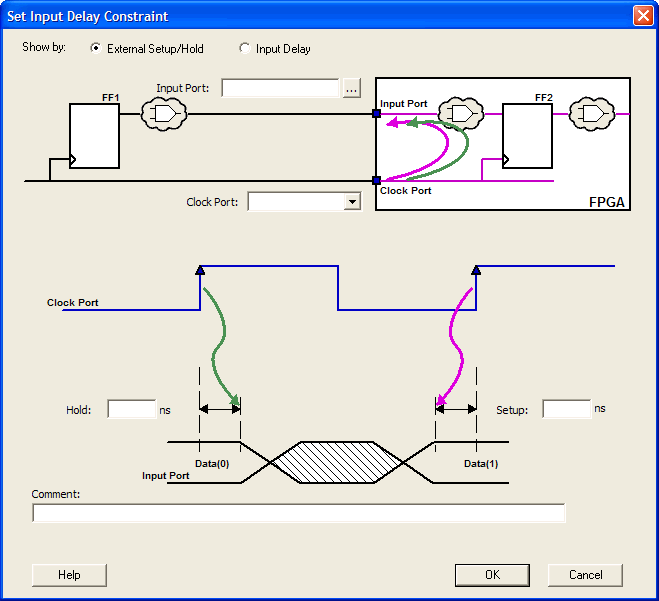
- In the Show by field, select External Setup/Hold.
- Click the Browse
button in the Input Port field to select the ports for
the external setup constraints. The Select Ports for Input Ports
dialog box appears and displays the input ports in the design (as shown in the
following figure).
Figure 21-5. Select Ports for Input Delay Dialog Box 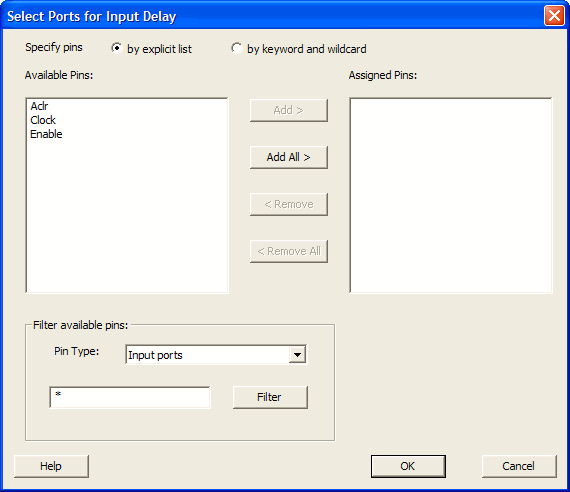
- Select the ports Enable and Aclr, and then click Add to move the pins from the Available Pins list to the Assigned Pins list. Click OK to close the Select Ports for Input Delay dialog box.
- Enter the following values in the
Set Input Delay Constraint dialog box:
- Clock Port: Select Clock from the Clock Port drop-down list.
- Hold Delay: 1 ns
- Setup Delay: 8 ns
- Click OK to close the Set Input Delay Constraint dialog box.
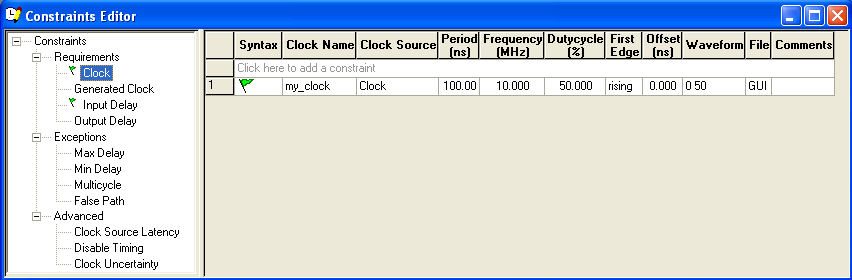
The Input Delay constraints appear in the SmartTime Constraint Editor. Note that the Timing Constraints Editor View displays both the external setup/hold requirement and the Maximum Delay and Minimum Delay (as shown below).
Continue to add an output delay constraint.