
21.6.2 Creating a Clock Constraint
To create a clock constraint:
- In Designer, click the Timing Constraints Editor icon to start SmartTime and open the SmartTime Constraints Editor (as shown in the figure below).
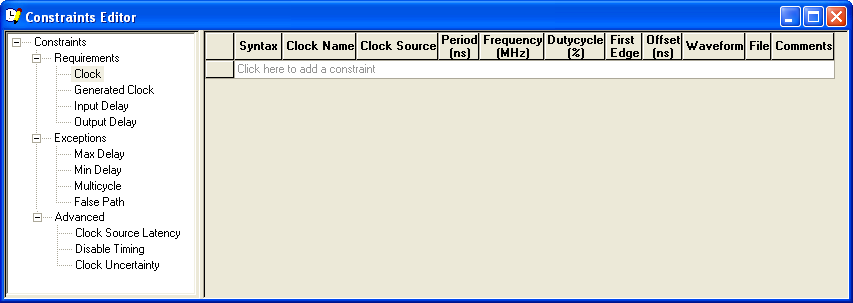
Figure 5 · SmartTime Constraints Editor
- Add a clock constraint by clicking the New Clock Constraint icon
 in the SmartTime toolbar. The Create Clock Constraint dialog box appears (as shown below).
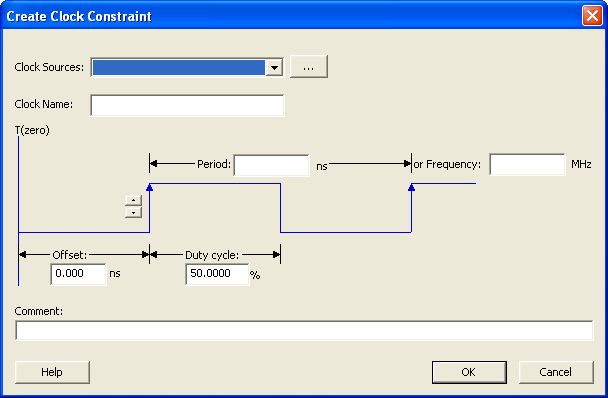
Figure 6 · Create Clock Constraint Dialog Box
- Select the Clock pin from the pull-down menu in the Clock source field, or click the Browse button to open the
Choose the Clock Source Pin dialog box, select the Clock pin and click OK.
- Modify the Clock Name. The name of the first clock source is provided as default.
- Type 100 in the Period field of the Create Clock Constraint box and accept all other default values. Click OK to close the dialog box.
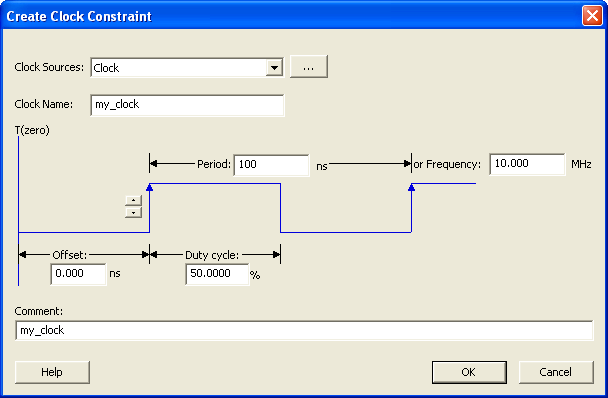
Figure 7 · Create Clock Constraint Dialog Box With Values
The clock constraint appears in the SmartTime Constraints Editor (as shown in the figure below).
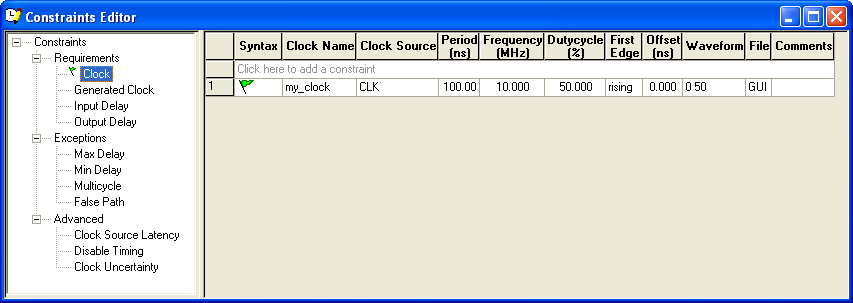
Figure 8 · SmartTime Constraints Editor with Clock Constraint
Continue to add an input delay constraint.