20.2.19.6 Cycle-Accurate Power Analysis Window
In the Cycle Accurate Power Analysis dialog box, mouse over a cycle to obtain the cycle number, the start and end times, and the power usage for the selected cycle.
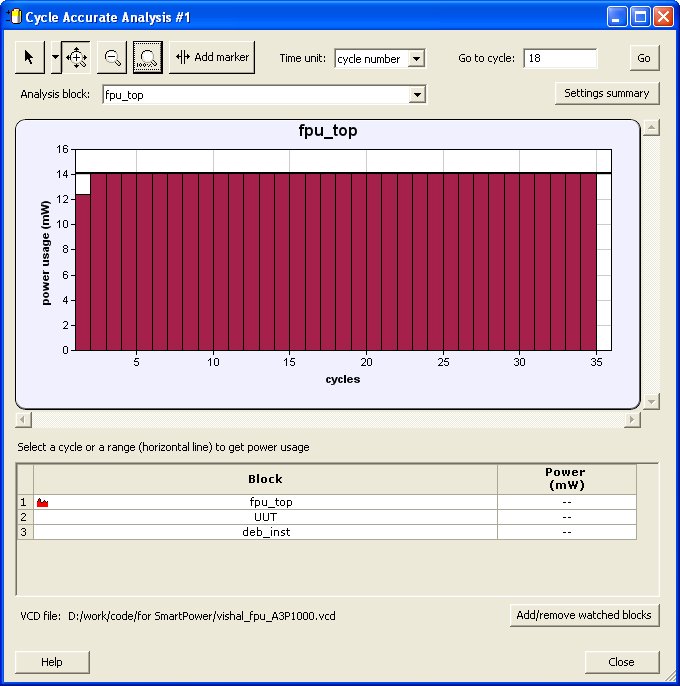
Use the  Select button to select a cycle in the analysis, the grid displays the block name and power usage for the watched blocks.
Us the Add Marker button to create cycle ranges – intervals between markers and/or the simulation ends.
To select a range, mouse over the average power usage horizontal line. This will display the average power usage for the range.
To move to the beginning or end of a range, right-click the average power usage of the range and select Go to Beginning of Range or Go to End of Range.
To move the marker to another cycle, click and drag the marker to another cycle; or from the right-click menu, select
Move marker, and enter a time value.
To delete the marker, right-click the marker, and select Delete marker.
To move to the previous or next markers, right-click the marker, and select Go to previous marker or Go to previous marker.
Use the  Zoom In button to zoom in the analysis view.
Use the  Zoom In Horizontal button to zoom in the analysis view. Us the
 Zoom Out button to zoom out the analysis view.
Us the  Zoom to Full View button to zoom into full view.
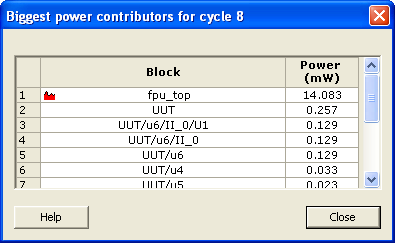
To view the most power-consuming blocks for a cycle, right-click the cycle, and select Show Most Consuming Blocks for this Cycle. This opens the Biggest Power Contributors for Cycle window.
To view the analysis for a specific time, enter a time value in the Go to time box, select the time unit, and press the Go button.
To view the analysis for a specific block, select the block from the Analysis Block pull-down.
To export the cycle-accurate power analysis chart, right-click the chart, and select Export Chart to File.
You can modify the blocks you want to watch during analysis, by pressing the Add/Remove Watched Blocks button.
If the operating conditions in SmartPower have been modified, a warning appears to indicate that the settings have been changed. Click the hyperlink to regenerate the Cycle-Accurate analysis view.
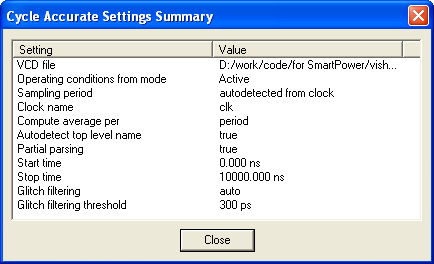
Click the View Settings Summary button to display the cycle-accurate settings.
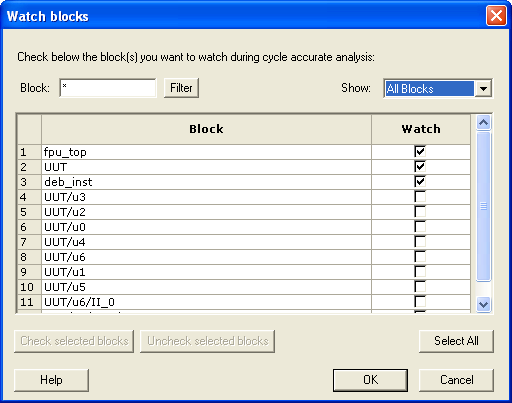
Click the Add/Remove Watched Blocks button to display a list of watched blocks . You can add or remove watched blocks by checking or unchecking the Watch checkbox for that particular block(s) or by selecting blocks in the grid and using the Check or Uncheck Selected Blocks buttons. You can use the filter options to hide or display the list of blocks based on the criteria entered.