
21.8.2 Analyzing Your Design
The timing engine uses the following priorities when analyzing paths and calculating slack:
- False path
- Max/Min delay
- Multi-cycle path
- Clock
If multiple constraints of the same priority apply to a path, the timing engine uses the tightest constraint. You can perform two types of timing analysis: Maximum Delay Analysis and Minimum Delay Analysis.
To perform the basic timing analysis:
- Open the Timing Analysis View
using one of the following methods:
- In the Design Flow window, click the Timing Analyzer icon to display the SmartTime Timing Analyzer.
- From the SmartTime Tools menu, choose or Minimum Delay Analysis.
- Click the
 icon for
Maximum Delay Analysis or the
icon for
Maximum Delay Analysis or the  icon for
Minimum Delay Analysis from the SmartTime window.
icon for
Minimum Delay Analysis from the SmartTime window.
Note: When you open the Timing Analyzer from Designer, the Maximum Delay Analysis window is displayed by default.Figure 21-41. Maximum Delay Analysis View 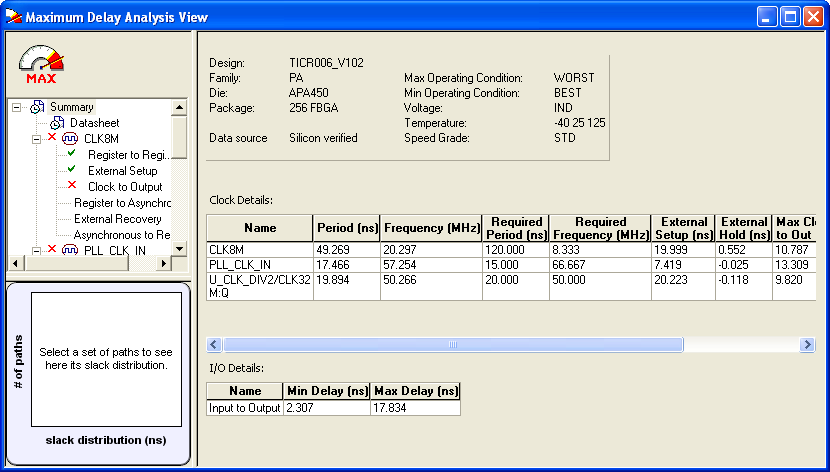
- In the Domain Browser, select the
clock domain. Clock domains with a
 indicate that the timing
requirements in these domains were met. Clock domains with an x indicate that
there are violations within these domains. The Paths List displays the timing
paths sorted by slack. The path with the lowest slack (biggest violation) is at
the top of the list.
indicate that the timing
requirements in these domains were met. Clock domains with an x indicate that
there are violations within these domains. The Paths List displays the timing
paths sorted by slack. The path with the lowest slack (biggest violation) is at
the top of the list. - Select the path to view. The Path Details below the Paths List displays detailed information on how the slack was computed by detailing the arrival time and required time calculation. When a path is violated, the slack is negative and is displayed in red color.
- Double-click the path to display
a separate view that includes the path details and schematic.Note: In cases where the minimum pulse width of one element on the critical path limits the maximum frequency for the clock, SmartTime displays an icon for the clock name in the Summary List. Click on the icon to display the name of the pin that limits the clock frequency.
- Repeat the above steps as required.