21.8.10 Cross-probing Between NetlistViewer and SmartTime
Use NetlistViewer with SmartTime to view and trace entire Timing paths and to cross-probe one or more objects.
Note: Your design must be compiled to start NetlistViewer. If it
is not compiled, Designer prompts you to compile your design. After you compile it,
NetlistViewer opens and displays the netlist.
To cross-probe an object using NetlistViewer and SmartTime:
In the Design Flow
window, click NetlistViewer to display your
netlist, and then click Timing Analyzer to display the
SmartTime Timing Analyzer.
In the SmartTimeTiming
Analyzer, select the clock domain in the Domain
Browser.
Select a path in the Paths List, right-click it, and
choose Expand selected paths from the right-click
menu.
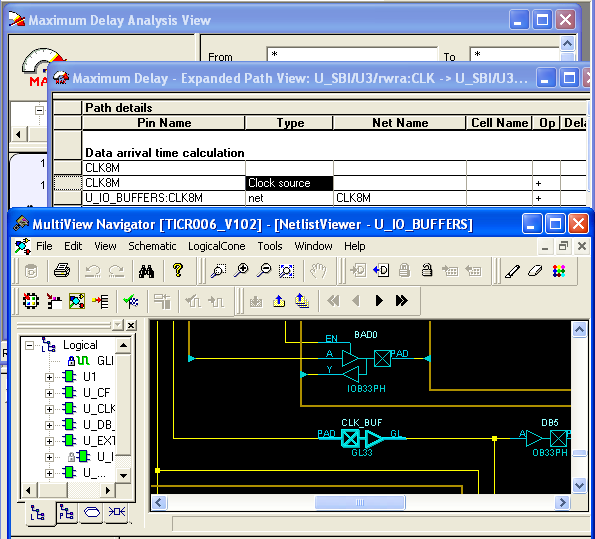
Select any instance in the
SmartTime Expanded Path View. The instance appears
highlighted in both SmartTime and NetlistViewer as shown in the following example.
Note: To select multiple instances, hold down the
Shift key as you click each instance.
Figure 21-55. Selected Instance Appears Highlighted in Both SmartTime and
NetlistViewer
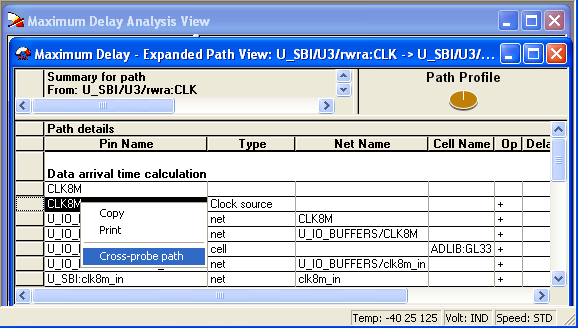
To cross-probe a path,
right-click the path, and choose Cross-probe Path from the right-click
menu (as shown in the following example).Figure 21-56. Cross-probe Path Using Right-click Menu
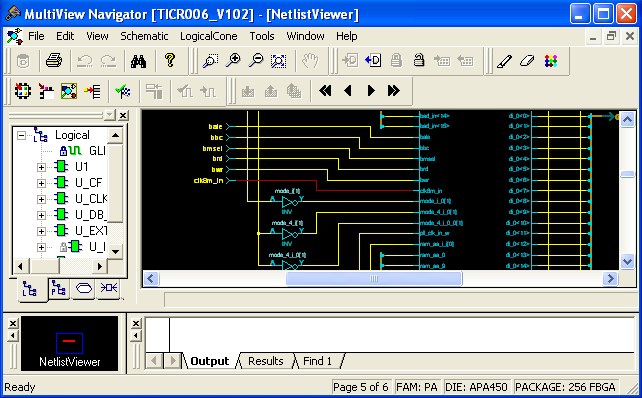
All objects in the selected path appear highlighted in NetlistViewer as shown in the following
figure.Figure 21-57. All Objects in the Cross-probed Path Appear Highlighted in
NetlistViewer
Note: Changing the highlight color does not change the color of
all cross-probed paths in NetlistViewer. To change the color of a cross-probed path,
from the Edit menu, choose Highlight Color and select a different color. Then
cross-probe the path again in SmartTime. The cross-probed path will appear in the
new highlight color.
For more information, see the SmartTime User’s Guide .