
21.8.5 Managing Path Sets
You can create and manage custom path sets for timing analysis and tracking purposes. Path sets are displayed under the Custom Path Sets at the bottom of the Domain Browser.
To add a new path set:
- Right-click anywhere in the Domain Browser, and choose Add Set. The Add Path Analysis Setdialog box appears (as shown below).Note: You can click the
 icon in the SmartTime window bar to display the Add Path Analysis Set dialog box.
Figure 21-44. Add Path Analysis Set Dialog Box 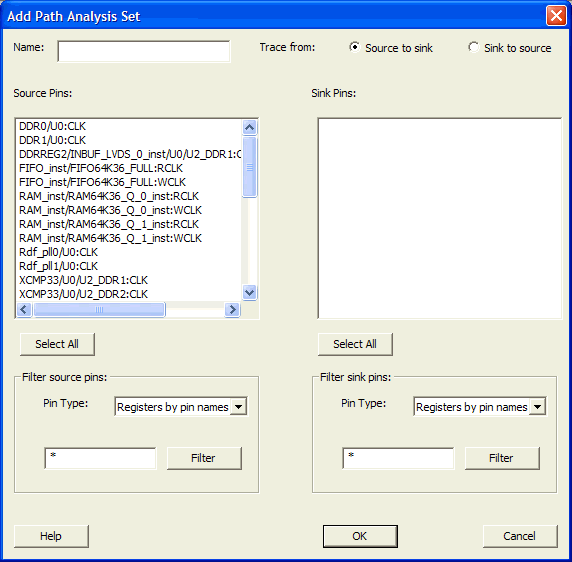
- Enter a name for the path set.
- Select the source and sink pins. You can use the filters to control the type of pins displayed.
- Click OK. The new path set appears under Custom Path Sets in the Domain Browser (as shown below).
Figure 21-45. Updated Domain Browser with User Sets 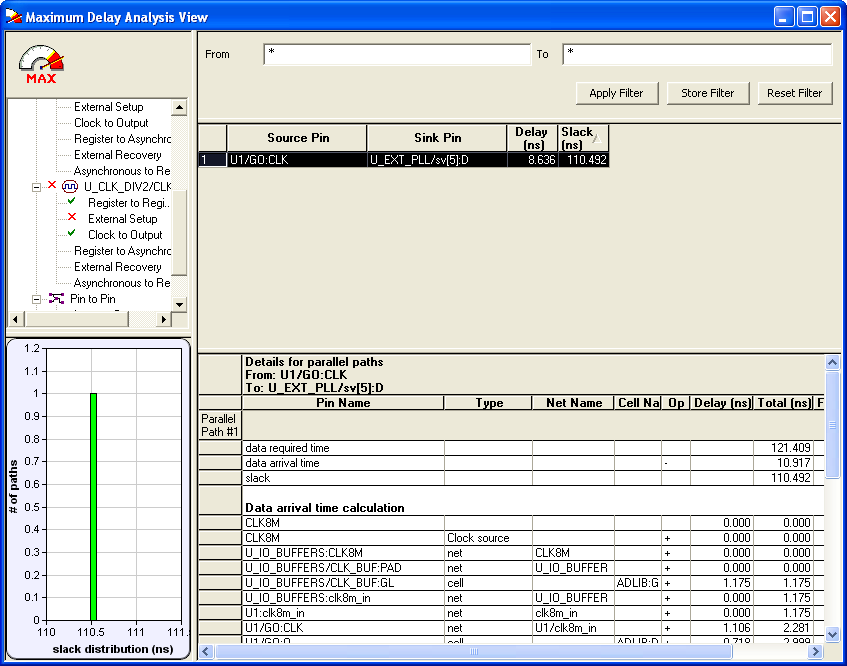
To remove an existing path set:
- Select the path set from the User Sets in the Domain Browser.
- Right-click the set to delete, and then choose Delete Set from the right-click menu.
To rename an existing path set:
- Select the path set from User Set in the Domain Browser.
- Right-click the set to rename, and then choose Rename Set from the right-click menu.
- Edit the name directly in the Domain Browser.