
21.8.4 Managing Clock Domains
In SmartTime, timing paths are organized by clock domains. By default, SmartTime displays domains
with explicit clocks. Each clock domain includes at least three path sets:
- Register to Register
- External Setup (in the Maximum Analysis View) or External Hold (in the Minimum Analysis View)
- Clock to Out
You must select a path set to display a list of paths in that specific set.
To manage the clock domains:
- Right-click anywhere in the
Domain Browser, and choose Manage Clock Domains. The
Manage Clock Domain Dialog Box dialog box appears (as shown in the following figure.Note: You can click the
 icon in
the SmartTime window bar to display the Manage Clock
Domains dialog box.
icon in
the SmartTime window bar to display the Manage Clock
Domains dialog box.Figure 21-43. Manage Clock Domains Dialog Box 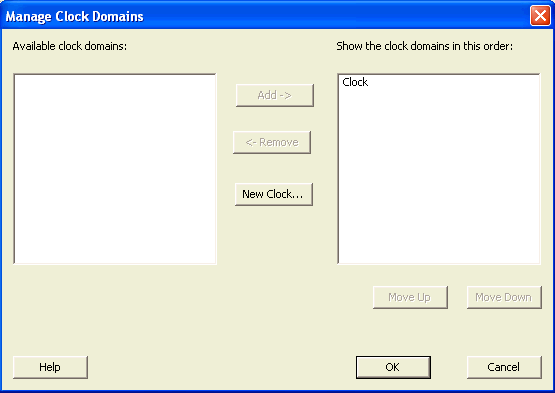
- To add a new domain, select a clock domain from the Available clock domains list, and click either Add or New Clock to add a non-explicit clock domain.
- To remove a displayed domain, select a clock domain from the Show the clock domain in this order list, and click Remove.
- To change the display order in the Domain Browser, select a clock domain from the Show the clock domain in this order list, and then use the Move Up or Move Down to change the order in the list.
- Click OK. SmartTime updates the Domain Browser based on your specifications. If you have added a new clock domain, then it will include at least the three path sets as mentioned above.