
21.8.8 Using Filters
You can use filters in SmartTime to limit the Path List content (that is, create a filtered list on the source and sink pin names). The filtering options appear on the top of the Timing Analysis View. You can save these filters one level below the set under which it has been created.
To use the filter:
- Select a set in the Domain Browser to display a given number of paths, depending on your SmartTime Options settings (100 paths by default).
- Enter the filter criteria in both
the From and To fields and click
Apply Filter. This limits the display to the paths
that match your filter criteria.
Figure 21-49. Maximum Delay Analysis View 
- Click Store Filter
to save your filter criteria with a special name. The Store Filter as Analysis Set dialog box appears
(as shown below).
Figure 21-50. Store Filter as Analysis Set Dialog Box 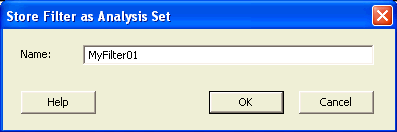
- Enter a namefor the filter such
as MyFilter01, and click OK. Your new filter name appears
below the set under which it was created.
Figure 21-51. Updated Maximum Delay Analysis View 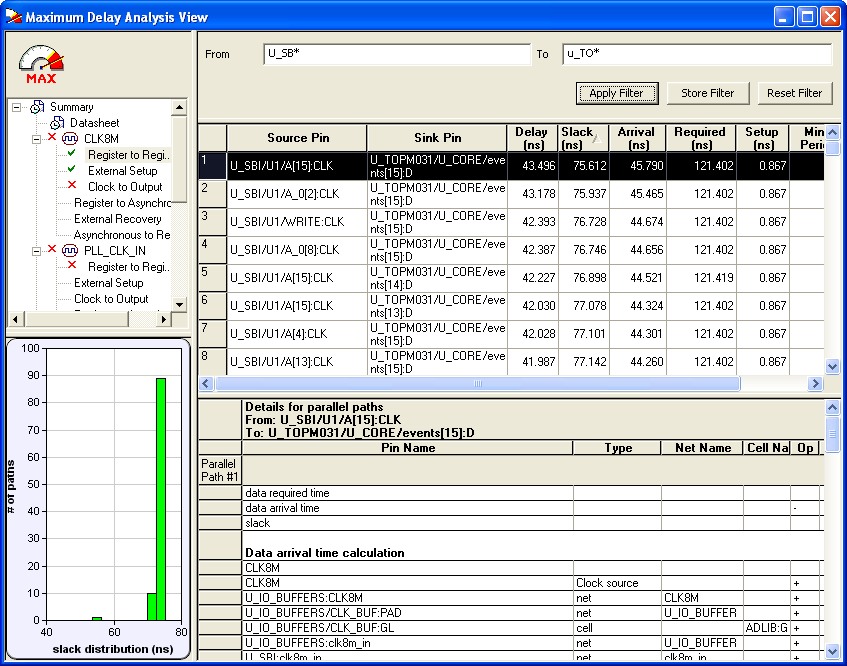
Repeat the above steps and cascade as many sets as you need using the filtering mechanism.
To remove a set created with filters:
- Select the set that uses filters.
- Right-click the set, and choose Delete Set from the shortcut menu.
To rename a set created with filters:
- Select the set that uses filters.
- Right-click the set, and choose Rename Set from the shortcut menu.
- Edit the name directly in the Domain Browser.
To edit a specific filter in the set:
- Select the filter to edit.
- Right-click the filter, and choose Edit Set from the shortcut menu.