
21.7.9 Specifying Generated Clock Constraints
Specifying a generated clock constraint enables you to define an internally generated clock for your design and verify its timing behavior. Use generated clock constraints and clock constraints to meet your performance goals.
To specify a generated clock constraint:
- Add the constraint in the editable constraints grid or open the Create Generated Clock Constraintdialog box using one of the following methods:
- From the Actions menu, choose Constraints > Generated Clock.
- Click the
 icon.
icon. - Right-click the GeneratedClock in the Constraint Browser.
- Double-click any field in the Generated Clock Constraints grid.
The Create Generated Clock Constraint dialog box appears (as shown below).Figure 21-31. Create Generated Clock Constraint 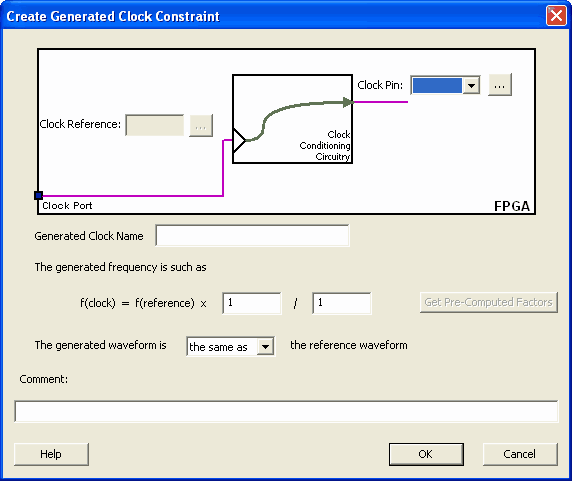
- Select a Clock Pin
to use as the generated clock source. To display a list of available generated
clock source pins, click the Browse button. The Select Generated Clock Source dialog box appears (as shown below).
Figure 21-32. Select Generated Clock Source Dialog Box 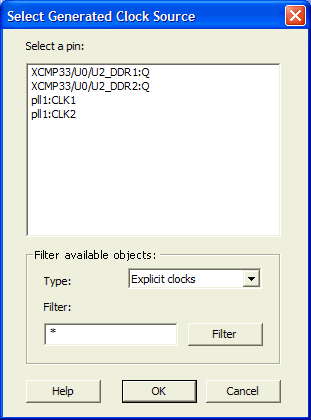
- Modify the Clock Name if necessary.
- Click OK to save these dialog box settings.
- Specify a Clock Reference. To display a list of available clock reference pins, click the Browse button. The Select Generated Clock Reference Dialog Box dialog box appears.
- Click OK to save this dialog box settings.
- Specify the values to calculate the generated frequency: a multiplication factor and/or a division factor (both positive integers).
- Specify the first edge of the generated waveform either same as or inverted with respect to the reference waveform.
- Click OK. The new constraint appears in the Constraints List.
Note: From the File menu, choose Commit to save the newly created constraint in the
database.