
21.7.10 Using Automatically Generated Clock Constraints
The automatically generated clock constraints is only available for IGLOO, ProASIC3, SmartFusion, Fusion, and Axcelerator families.
If your design uses a static PLL, SmartTime automatically generates the required frequency at the output of the PLL, provided you have supplied the input frequency. When you start SmartTime, a generated clock constraint appears in the Constraints List with the multiplication and division factor extracted from the PLL configuration. The File column specifies this constraint as auto-generated (as shown below).
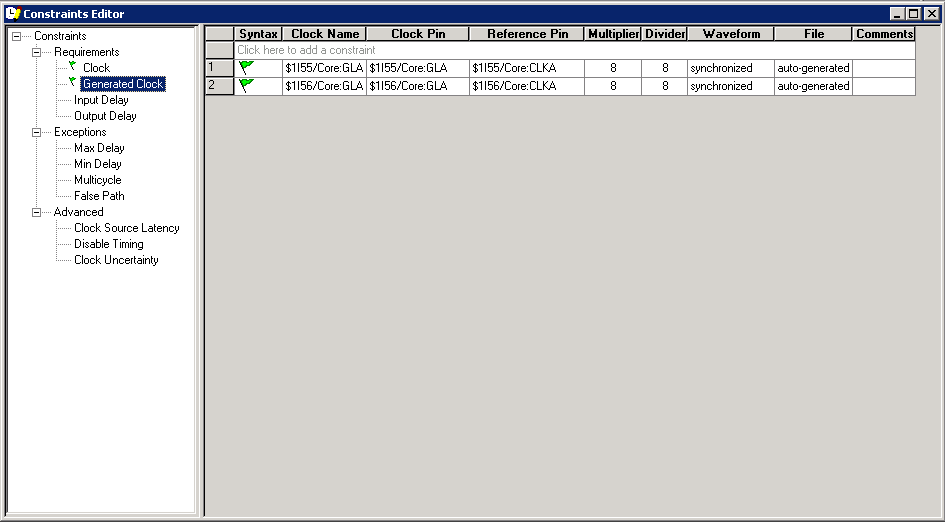
If you delete the automatically generated clock constraint, SmartTime does not regenerate it the next time you open the design. However, you can easily create it again by using the following steps:
- Open the Create Generated Clock Constraint dialog box (as shown below).
Figure 21-34. Create Generated Clock Constraint 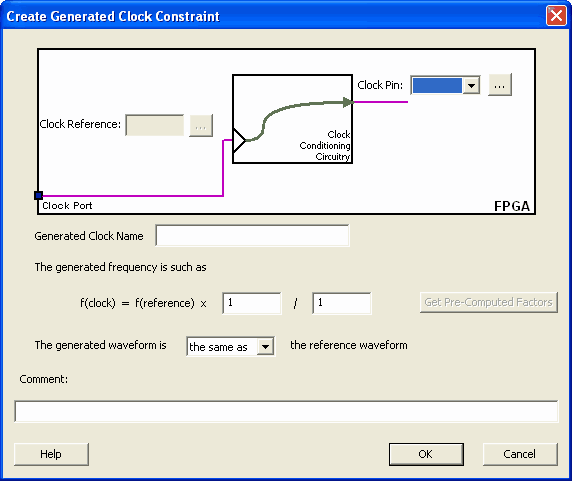
- Select the PLL output as the Clock Pin source for the generated clock.
- Select the PLL input clock as the Clock Reference for the generated clock.
- Click Get Pre-Computed Factors. SmartTime retrieves the factor from the static PLL configuration.
- Click OK.