
21.7.11 Specifying an Input Delay Constraint
Use the input delay constraint to define the arrival time of an input relative to a clock.
To specify an input timing delay constraint:
- Add the constraint in the Editable Constraints Grid or open the Set Input Delay Constraint
dialog box using one of the following methods:
- From the SmartTime Actions menu, choose Constraints > Input Delay.
- Click the
 icon.
icon. - Right-click the Input Delay in the Constraint Browser.
- Double-click any field in the Input Delay Constraints grid.The Set Input Delay Constraint dialog box appears (as shown below).
Figure 21-35. Set Input Delay Dialog Box 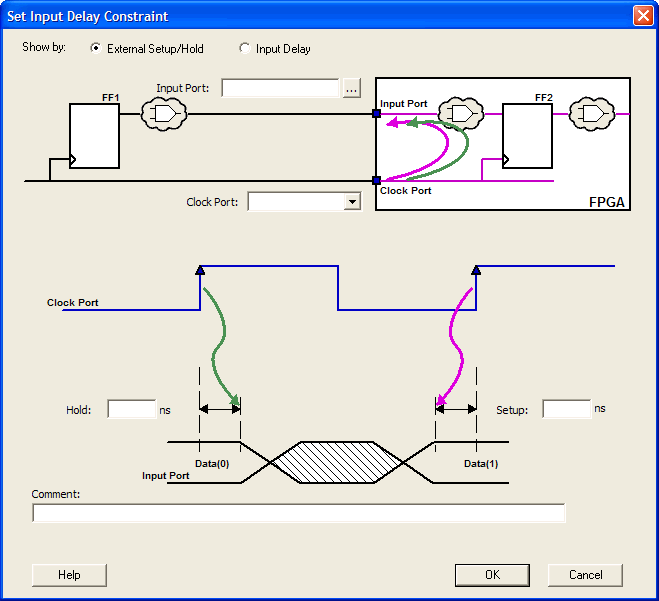
- Select either External
Setup/Hold or Input Delay.
- External Setup/Hold enables you to
enter an input delay constraint by specifying the timing budget inside the FPGA using
the external setup and hold time. This is the default selection.Note: The external hold information is currently used for analysis only and not by the optimization tools.
For the basic timing analysis flow of a simple design, select External Setup/Hold.
- Input Delay enables you to enter an
input delay constraint by specifying the timing budget outside the FPGA. You can enter
the Maximum Delay, the Minimum Delay, or both.Note: The Minimum Delay is currently used for analysis only and not by the optimization tools.
When you change values in one view, SmartTime automatically updates the other view.
- External Setup/Hold enables you to
enter an input delay constraint by specifying the timing budget inside the FPGA using
the external setup and hold time. This is the default selection.
- Specify the Input Port
or click the Browse button to display the
Select Ports for Input Delay dialog box.
Figure 21-36. Select Ports for Input Delay Dialog Box 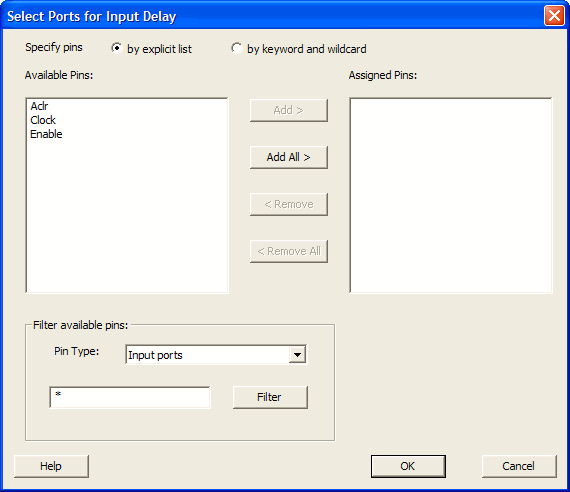
- Select the name of the input pin(s) from the Available Pins list. Choose the Pin Type from the drop-down list. You can use the filter to narrow the pin list. You can select multiple ports in this window.
- Click Add or Add All to move the input pin(s) from the Available Pins list to the Assigned Pins list.
- Click OK.The Set Input Delay Constraint dialog box displays the updated Input Port information.
Figure 21-37. Updated Set Input Delay Constraint Dialog Box 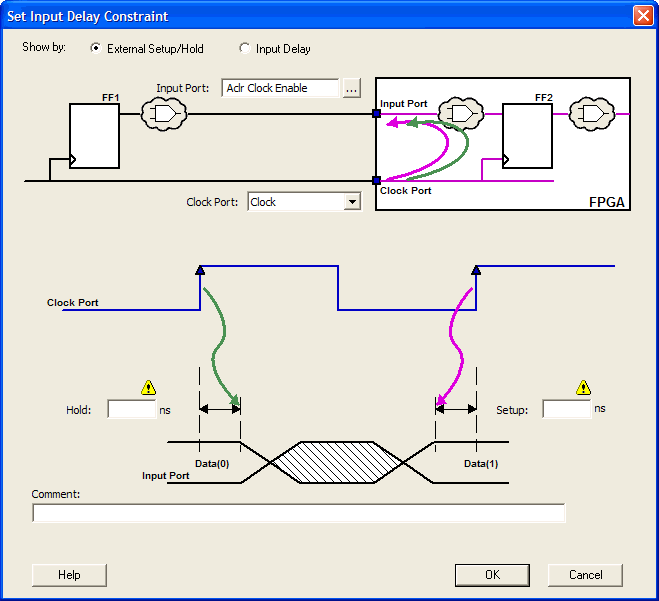
- Select a clock from the Clock Port drop-down list.
- If you selected Show by: External Setup/Hold, specify the External Setup. If you selected Show by: Input Delay, specify the Maximum Delay value.
- If you selected Show by External Setup/Hold, specify the External Hold. If you selected Show by: Input Delay, specify the Minimum Delay value.
- Click OK.
SmartTime adds this constraint to the Constraints List in the SmartTime Constraints Editor.