
5.34.151 Script Export Options Dialog Box
If you export a Tcl script in the Project Manager, the Script Export Options dialog box appears.
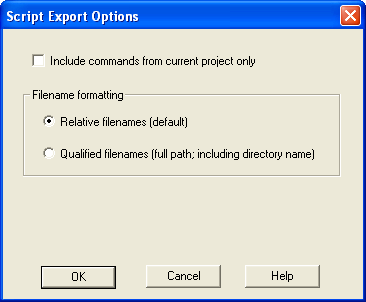
Include commands from current project only - Select this option if you want to include all the commands from your current project.
Filename Formatting - Select Relative filenames if you do not intend to move the Tcl script from the saved location, or Qualified filenames if you plan to move the Tcl script on your machine.
Command | Sub-menu | Icon | Function |
New Project |
| Starts the New Project Wizard. | |
Open Project |
| Opens the Open Project dialog box . | |
Close Project | Closes the current active project; the Project Manager remains open. | ||
Save Project |
| Saves the current project. | |
Save Project As | Saves the current project in a new directory; prompts you to enter a new project name. | ||
Detect New | Detects new files and adds them to the Project Manager (if found). | ||
|
VHDL Library > |
Add |
Add a VHDL library in your project. | |
|
Remove |
Remove a VHDL library in your project. | ||
|
Rename |
Rename a VHDL library in your project. | ||
|
Settings |
Opens the Project Settings dialog box; enables you to manage device, simulation, and programming options for your project. | ||
|
Profile |
Opens the Project Profile dialog box; enables you to specify locations for your third-party synthesis, stimulus, and simulation tools. Libero IDE includes tools for synthesis, stimulus, and simulation. | ||
|
Configure Project Flow |
Opens the Configure Flow dialog box, sets options on your HDL netlists, DRC checker, ViewDraw, and a resource report when you generate a core. | ||
|
File Organization > |
Source Files for Synthesis |
Opens the Organize Source Files for Synthesis dialog box. | |
|
Source Files for Simulation |
Opens the Organize Source Files for Simulation dialog box. | ||
|
Designer Constraint Files |
Opens the Organize Constraints for Designer dialog box; enables you to organize your Designer constraint files in the Project Manager. | ||
|
Designer CDB Files |
Opens the CDB File Organization dialog box; the CDB File Organization dialog box manages conflict resolution (if any) between the blocks in your design. | ||
|
Stimulus |
Opens the Organize Stimulus dialog box; enables you to organize your stimulus files in the Project Manager. | ||
|
Designer Views > |
Select |
Select your Designer View from the drop down menu. Note that views are listed in they order they were created. | |
|
Previous |
|
Switches to the previous view. | |
|
Next |
|
Switches to the next view. | |
|
Add |
|
Opens the Add Designer View dialog box; enables you to specify the name of your latest view. | |
|
Remove |
|
Opens Remove Designer View dialog box; enables you to delete all related Designer View files from your disk. | |
|
Rename |
|
Opens Rename Designer View dialog box; select the Designer View you want to rename and enter the new name. | |
|
Execute Script |
Opens Execute Script dialog box; enables you to run Tcl script from the Project Manager. | ||
|
Preferences |
Opens the Preferences dialog box. | ||
|
Recent Projects |
Opens list of recent Libero IDE projects. | ||
|
Exit |
Closes Project Manager. |


Project Manager File Menu
Command | Icon | Shortcut | Sub-menu | Function |
New |
| Ctrl + N | Opens the Project Manager New file dialog box and prompts you to enter a name and specify a file type. | |
Open |
| Ctrl + O | Opens the Project Manager Open dialog box; enables you to select a file to open. | |
|
Close |
Closes the current file; the Project Manager remains open. | |||
|
Save |
|
Ctrl + S |
Saves the current file. | |
|
Save As |
Saves the current file as a different type (such as a TXT file). | |||
|
Import Files |
Opens the Import Files dialog box; enables you to import project files into the Project Manager. | |||
|
Create Link |
Opens the Create Link dialog box; browse to select the file you wish to link. Linked files are added to the Design Explorer in the Modules defined in multiple files list. | |||
|
Change All Links |
Opens the Change All Links dialog box; enables you to update/change all the links for the files in your project at once. | |||
|
Unlink All: Copy Files Locally |
Copies all linked files to your local project. | |||
|
Export > |
Profiles |
Opens the Project Manager Export dialog box, and defaults to save the exported file with the profile (INI) extension. | ||
|
Script Files |
Opens the Project Manager Export dialog box, and defaults to save the exported file with the Tcl (TCL) extension. | |||
|
Template |
Opens the Project Manager Export dialog box, and defaults to save the exported file as a template with a VHD or VLG extension. | |||
|
|
|
Displays the Print dialog box (if available); allows you to print whatever element of the project on which you are working. | ||
|
Print Preview |
Previews your selection before you print (if available). | |||
|
Page Setup |
Opens the Page Setup dialog box; enables you to format your page header and footer. |

Project Manager Edit Menu
Command | Sub-menu | Icon | Shortcut | Function |
Undo |
| CTRL + Z | Reverses your last action. | |
Redo |
| CTRL + Y | Reverses the action of your last Undo command. | |
Cut |
| CTRL + X | Removes the selection from your design. | |
Copy |
| CTRL + C | Copies the selection to the Clipboard. | |
Paste |
| CTRL + V | Pastes the selection from the Clipboard. | |
Select All | CTRL + A | Selects all the content in your current file (such as in a VHDL file open in the VHDL editor). | ||
Find and Replace > | Find |
| CTRL + F | Displays the Find dialog box, which you use to locate instances, nets, ports, and regions. |
|
Find Next |
|
F3 |
Finds the next occurrence of the text in the Find field. | |
|
Replace |
|
CTRL + H |
Displays the Replace dialog box; enables you to search and replace content in your files (files must be open and selected to use this feature). | |
|
Find in Files |
|
Opens the Find in Files dialog box; enables you to search for text in files or directories that you specify. | ||
|
Find Module / Component |
|
Opens the Find Module dialog box; searches the Libero IDE project for specific entity (module) names. | ||
|
Comment Out |
CTRL + M |
Inserts comment characters in the selected line (or lines) of your text editor. | ||
|
Uncomment Out |
CTRL + K |
Removes comment characters from the selected line (or lines) of your text editor. | ||
|
Filter |
CTRL + R |
Refreshes the display. |


Project Manager View Menu
Command | Sub-menu | Shortcut | Function |
Toolbars > | Status Bar | Shows or hides status bar in Project Manager. | |
Standard | Shows or hides standard toolbar in Project Manager. | ||
|
Designer Views |
Shows or hides Designer views toolbar in Project Manager. | ||
|
Canvas |
Available only when using SmartDesign; shows/hides the Canvas toolbar in Project Manager. | ||
|
Top Symbol |
Available only when using SmartDesign; shows/hides the top symbol toolbar in Project Manager. | ||
|
Rotate |
Available only when using SmartDesign; shows/hides the Rotate toolbar in Project Manager. | ||
|
Align |
Available only when using SmartDesign; shows/hides the Align toolbar in Project Manager. | ||
|
Shape |
Available only when using SmartDesign; shows/hides the Shape toolbar in Project Manager. | ||
|
Zoom |
Available only when using SmartDesign; shows/hides Zoom toolbar in Project Manager. | ||
|
Schematic |
Available only when using SmartDesign; shows/hides Schematic toolbar in Project Manager. | ||
|
SmartDesign Tools |
Available only when using SmartDesign; shows/hides SmartDesign Tools toolbar in Project Manager. | ||
|
Design Explorer |
Shows or hides the Design Explorer window in Project Manager. | ||
|
Catalog |
Shows or hides the Catalog window in Project Manager. | ||
|
Information Window |
Shows or hides the Information window in Project Manager. | ||
|
Find Window |
Shows or hides the Find window in Project Manager. | ||
|
Log Window |
Shows or hides the Log window in Project Manager. | ||
|
Configure Information Window |
Enables you to show/hide elements in the Information window, such as lists of new features, or properties of your current project. | ||
|
Project Flow Window |
Shows or hides the Project Flow window in the Project Manager. | ||
|
Bring Project Flow Window to the front |
F2 |
Moves Project Flow window to the front of display; useful if you have several windows open simultaneously. | |
|
Refresh Design Hierarchy |
CTRL + R |
Updates the Hierarchy tab in the Design Explorer window. Useful if you add files to the project and Project Manager does not show them in the Hierarchy. | |
|
Reset Window Layout |
Returns Project Manager window layout to default. | ||
|
Maximize Work Area |
CTRL+W |
Hides the Catalog, Log window, and Design Explorer windows (if open) and expands the selected tab in the Project Flow or SmartDesign work area. | |
|
Zoom > |
Zoom In |
CTRL + + |
Zooms into the view in the Project Manager (if enabled). |
|
Zoom Out |
CTRL + - |
Zooms out of the view in the Project Manager (if enabled). | |
|
Zoom Region |
CTRL +W |
Zooms into a region of the view in the Project Manager (if enabled); click and drag to select a region. | |
|
Zoom Fit |
CTRL + 0 |
Fits the view into the Project Manager (if enabled). | |
|
Pan |
Scrolls the view in the Project Manager (if enabled). |
Project Manager Tools Menu
Command | Sub-menu | Icon | Function |
HDL Editor |
| Opens the New file dialog box and defaults to VHDL entity. Enter a filename and click OK to open the VHDL editor. | |
SmartDesign |
| Opens the New file dialog box and defaults to SmartDesign component. Enter a filename and click OK to open SmartDesign. | |
CoreConsole |
| Opens the New file dialog box and defaults to CoreConsole component. Enter a filename and click OK to open CoreConsole. | |
ViewDraw |
| Opens the New file dialog box and defaults to Schematic. Enter a filename and click OK to open ViewDraw. | |
ViewDraw > | Generate EDIF | Creates a new EDIF file from the schematic. | |
|
Tools |
Generate HDL |
Creates a new HDL file from the schematic. | |
|
Synplify Synthesis |
|
Starts Synplify. | |
|
WaveFormer Stimulus |
|
Starts WaveFormer and creates a stimulus file named after your project. | |
|
ModelSim Simulation |
|
Starts ModelSim ME and opens any existing simulation files in your project. | |
|
Designer Place-and-Route |
|
Starts Designer; enables you to compile, layout, and analyze your design. | |
|
Silicon Sculptor |
|
Starts the Silicon Sculptor programming tool. | |
|
FlashPro |
|
Starts the FlashPro programming tool. | |
|
Silicon Explorer |
Starts the Silicon Explorer debug tool (if available). | ||
|
Identify Debugger |
Opens the Identify Debugger (from Synplify). |


