
13.33.233 Profiles Dialog Box
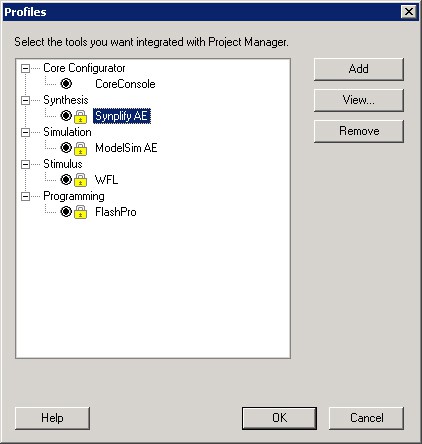
In the Libero IDE project, each user can activate predefined tool profiles (created during Libero IDE’s installation) or custom user tool profiles. You can create new custom user tool profiles if you want to add tools, try a different tool, change to an older or newer version, etc.
You can export and import your custom profiles; this is useful if you wish to share your profiles with someone else. To export, from the File menu choose Export Profiles. To import, from the File menu, choose Import Files and select Tool Profiles as the file type.
Your Profiles dialog box includes predefined system profiles for the Libero IDE tools. Default predefined profiles are locked and cannot be edited or deleted.
A red question mark next to a profile means that the location or version of the tool has changed. If your user profile has a red question mark you can click Edit to specify the location of the tool.
If your system profile shows a red question mark you may have opted not to install that tool during the Libero IDE setup/install. If you are using a different version of the tool you can create a custom profile that points to the correct tool location but you cannot update the default system profile.